Elastic Compute Cloud (EC2) Instance and System Status Checks.

Status Checks for Instances

With Instance status monitoring we can easily identify whether amazon EC2 has encountere any problem that might prevent our instances and application work properly.

Status checks are peformed every minute and it returns a pass or fail value. If all checks are pass overall status is OK. If one or more status checks fails overall status is impaired.

Types of Status Checks

There are two types of status checks System status check and Instance status check

System Status check

Monitor the AWS system required to use your instance to ensure they work properly this check detech problems which requires AWS intervention to resolve/repair.when System status check occurs we can wait for AWS to resolve the issue or we can stop and start the instance or by terminating and recreating the instance
Follow are the examples of problems that can cause instance status check to fail:

  • Loss of network connectivity
  • Loss of system power
  • Software issues on the ohysical host
  • Hardware issue on the physical host

Instance Status check

Monitor the software and network configuration of individual instance. This check detech problem which require our involvement when instance check fails we only need to take care.like by rebooting the instance or by making instance configuration changes.

  • Failed system check instance
  • Incorrect networking or startup configuration
  • Exhausted memory
  • Corrupted disk/file system
  • Incompatible kernel

Viewing Status Checks

Amazon EC2 provides you with several ways to view and work with status checks.

Viewing Status Using the Console

You can view status checks using the AWS Management Console.

To view status checks using the console

  1. Open the Amazon EC2 console at https://console.aws.amazon.com/ec2/.
  2. In the navigation pane, choose Instances.
  3. On the Instances page, the Status Checks column lists the operational status of each instance.
  4. To view the status of a specific instance, select the instance, and then choose the Status Checks tab.
  5. If you have an instance with a failed status check and the instance has been unreachable for over 20 minutes, choose AWS Support to submit a request for assistance. To troubleshoot system or instance status check failures yourself, see Troubleshooting Instances with Failed Status Checks.

Viewing Status Using the Command Line or API

You can view status checks for running instances using the describe-instance-status (AWS CLI) command.

To view the status of all instances, use the following command:

aws ec2 describe-instance-status

To get the status of all instances with a instance status of impaired:

aws ec2 describe-instance-status –filters Name=instance-status.status,Values=impaired

To get the status of a single instance, use the following command:

aws ec2 describe-instance-status –instance-ids i-1234567890abcdef0

Alternatively, use the following commands:

If you have an instance with a failed status check, see Troubleshooting Instances with Failed Status Checks.

Creating a Status Check Alarm Using the Console

You can create status check alarms for an existing instance to monitor instance status or system status. You can configure the alarm to send you a notification by email or stop, terminate, or recover an instance when it fails an instance status check or system status check.

To create a status check alarm

  1. Open the Amazon EC2 console at https://console.aws.amazon.com/ec2/.
  2. In the navigation pane, choose Instances.
  3. Select the instance.
  4. Select the Status Checks tab, and then choose Create Status Check Alarm.
  5. Select Send a notification to. Choose an existing SNS topic, or click create topic to create a new one. If creating a new topic, in With these recipients, enter your email address and the addresses of any additional recipients, separated by commas.
  6. (Optional) Choose Take the action, and then select the action that you’d like to take.
  7. In Whenever, select the status check that you want to be notified about.
  8. Note
  9. If you selected Recover this instance in the previous step, select Status Check Failed (System).
  10. In For at least, set the number of periods you want to evaluate and in consecutive periods, select the evaluation period duration before triggering the alarm and sending an email.
  11. (Optional) In Name of alarm, replace the default name with another name for the alarm.
  12. Choose Create Alarm.
  13. Important
  14. If you added an email address to the list of recipients or created a new topic, Amazon SNS sends a subscription confirmation email message to each new address. Each recipient must confirm the subscription by clicking the link contained in that message. Alert notifications are sent only to confirmed addresses.

If you need to make changes to an instance status alarm, you can edit it.

To edit a status check alarm

  1. Open the Amazon EC2 console at https://console.aws.amazon.com/ec2/.
  2. In the navigation pane, choose Instances.
  3. Select the instance, choose Actions, select CloudWatch Monitoring, and then choose Add/Edit Alarms.
  4. In the Alarm Details dialog box, choose the name of the alarm.
  5. In the Edit Alarm dialog box, make the desired changes, and then choose Save.

Reference Link

AWS Instance Types, Utilization, and Performance

Virtualization Types

All the instances uses either one of these virtualization method

Virtualization Types:-The main difference between this two type of virtualization is whether they can use special hardware extension like (CPU,HardDisk) in order to provide better performance support  HVM is current generation and provides better performance

  • HVM  AMIS (Hardware virtual machine)
    • Can use special hardware extensions
    • Can use PV drivers for network and storage
    • Usually the same or better than PV alone
    • It has got fully set of virtualized set of hardwares
    • Root by executing the master boot record of the root block device of your image
    • All current generation instance type support HVMs
    • To find a HVM ami verify that the virtualization type has been set to hvm using the console or describ-images command
  • PV AMIs (ParaVirtual)
    • PV AMIs boot with he special boot loader PV-Grub which starts the boot cycle and then loads the kernel specified in the menu.list file of the our image
    • They can run on host hardware which doesn’t have explicit hardware and GPU processing extentions or support for virtulization
    • To find a PV AMI, verify that the virtualization type of the AMI is set to paravirtual, using the console or the describe-images command


PV over HVM:-


Paravirtual guests traditionally performed better with storage and network operations than HVM guests because they could leverage special drivers for I/O that avoided the overhead of emulating network and disk hardware, whereas HVM guests had to translate these instructions to emulated hardware. Now these PV drivers are available for HVM guests, so operating systems that cannot be ported to run in a paravirtualized environment (such as Windows) can still see performance advantages in storage and network I/O by using them. With these PV on HVM drivers, HVM guests can get the same, or better, performance than paravirtual guests.


INSTANCE TYPES


Available Instance Types

Amazon EC2 provides the instance types listed in the following tables.

Current Generation Instances

For the best performance, we recommend that you use the current generation instance types when you launch new instances. For more information about the current generation instance types, see Amazon EC2 Instances.

Instance Family Current Generation Instance Types
General purpose t2.nano | t2.micro | t2.small | t2.medium | t2.large | t2.xlarge | t2.2xlarge | m4.large | m4.xlarge | m4.2xlarge | m4.4xlarge | m4.10xlarge | m4.16xlarge | m3.medium | m3.large | m3.xlarge | m3.2xlarge
Compute optimized c4.large | c4.xlarge | c4.2xlarge | c4.4xlarge | c4.8xlarge | c3.large | c3.xlarge | c3.2xlarge | c3.4xlarge | c3.8xlarge
Memory optimized r3.large | r3.xlarge | r3.2xlarge | r3.4xlarge | r3.8xlarge | r4.large | r4.xlarge | r4.2xlarge | r4.4xlarge | r4.8xlarge | r4.16xlarge | x1.16xlarge | x1.32xlarge
Storage optimized i2.xlarge | i2.2xlarge | i2.4xlarge | i2.8xlarge | d2.xlarge | d2.2xlarge | d2.4xlarge | d2.8xlarge
Accelerated computing p2.xlarge | p2.8xlarge | p2.16xlarge | g2.2xlarge | g2.8xlarge

Previous Generation Instances

Amazon Web Services offers previous generation instances for users who have optimized their applications around these instances and have yet to upgrade. We encourage you to use the latest generation of instances to get the best performance, but we will continue to support these previous generation instances. If you are currently using a previous generation instance, you can see which current generation instance would be a suitable upgrade. For more information, see Previous Generation Instances.

Instance Family Previous Generation Instance Types
General purpose m1.small | m1.medium | m1.large | m1.xlarge
Compute optimized c1.medium | c1.xlarge | cc2.8xlarge
Memory optimized m2.xlarge | m2.2xlarge | m2.4xlarge | cr1.8xlarge
Storage optimized hi1.4xlarge | hs1.8xlarge
Accelerated computing cg1.4xlarge
Micro instances t1.micro

Hardware Specifications

For more information about the hardware specifications for each Amazon EC2 instance type, see Amazon EC2 Instances.

To determine which instance type best meets your needs, we recommend that you launch an instance and use your own benchmark application. Because you pay by the instance hour, it’s convenient and inexpensive to test multiple instance types before making a decision.

Even after you make a decision, if your needs change, you can resize your instance later on. For more information, see Resizing Your Instance.

Note

Amazon EC2 instances run on 64-bit virtual Intel processors as specified in the instance type product pages. For more information about the hardware specifications for each Amazon EC2 instance type, see Amazon EC2 Instances. However, confusion may result from industry naming conventions for 64-bit CPUs. Chip manufacturer Advanced Micro Devices (AMD) introduced the first commercially successful 64-bit architecture based on the Intel x86 instruction set. Consequently, the architecture is widely referred to as AMD64 regardless of the chip manufacturer. Windows and several Linux distributions follow this practice. This explains why the internal system information on an Ubuntu or Windows EC2 instance displays the CPU architecture as AMD64 even though the instances are running on Intel hardware.

Virtualization Types

Each instance type supports one or both of the following types of virtualization: paravirtual (PV) or hardware virtual machine (HVM). The virtualization type of your instance is determined by the AMI that you use to launch it.

For best performance, we recommend that you use an HVM AMI. In addition, HVM AMIs are required to take advantage of enhanced networking. HVM virtualization uses hardware-assist technology provided by the AWS platform. With HVM virtualization, the guest VM runs as if it were on a native hardware platform, except that it still uses PV network and storage drivers for improved performance. For more information, see Linux AMI Virtualization Types.

Networking and Storage Features

When you select an instance type, this determines the networking and storage features that are available.

Networking features

  • Some instance types are not available in EC2-Classic, so you must launch them in a VPC. By launching an instance in a VPC, you can leverage features that are not available in EC2-Classic, such as enhanced networking, assigning multiple private IPv4 addresses to an instance, assigning IPv6 addresses to an instance, and changing the security groups assigned to an instance. For more information, see Instance Types Available Only in a VPC.
  • To maximize the networking and bandwidth performance of your instance type, you can do the following:
    • Launch supported instance types into a placement group to optimize your instances for high performance computing (HPC) applications. Instances in a common placement group can benefit from high-bandwidth (10 Gbps), low-latency networking. For more information, see Placement Groups. Instance types that support 10 Gbps network speeds can only take advantage of those network speeds when launched in a placement group.
    • Enable enhanced networking for supported current generation instance types to get significantly higher packet per second (PPS) performance, lower network jitter, and lower latencies. For more information, see Enhanced Networking on Linux.
  • The maximum supported MTU varies across instance types. All Amazon EC2 instance types support standard Ethernet V2 1500 MTU frames. All current generation instances support 9001 MTU, or jumbo frames, and some previous generation instances support them as well. For more information, see Network Maximum Transmission Unit (MTU) for Your EC2 Instance.

Storage features

  • Some instance types support EBS volumes and instance store volumes, while other instance types support only EBS volumes. Some instances that support instance store volumes use solid state drives (SSD) to deliver very high random I/O performance. For more information, see Storage.
  • To obtain additional, dedicated capacity for Amazon EBS I/O, you can launch some instance types as EBS–optimized instances. Some instance types are EBS–optimized by default. For more information, see Amazon EBS–Optimized Instances.


Reference Video:-


Change Management – ITIL

summaryChange Management – ITIL
Change management

A change is an activity that is
• Approved by the management
• Implemented with a minimized risk to existing IT infrastructure
• Results in a new status of one or more configuration item
• Provide increased value to business from the use of new or enhanced IT systems.
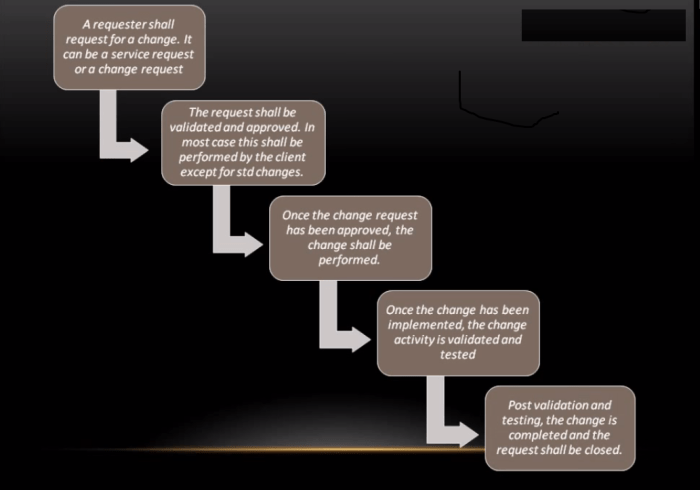
Steps in Change Management
Request (a change request is created) -> Approval is obtained for implementation -> Implementation (Changed is implemented and validation and testing done) -> Post implementation review -> Closure (of ticket post confirmation)

changemanagement
Steps involved in change management:-

pic2

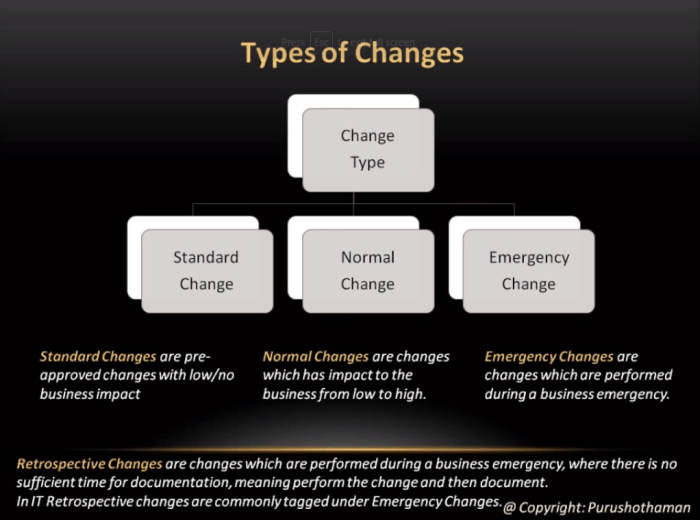
Types Of Changes:

Standard Changes :-
This are preapproved changes which have standard set of procedure with lower business impact or no business impact it can be implemented by service provider with client approver

Normal Change:-
This changes can be implemented they don’t have predefined steps impact may vary from low to high it may or may not require approval from the client based on the client service provider environment
Emergency Changes:-
Are similar to normal changes but are implemented in scenario of business emergency

changtype
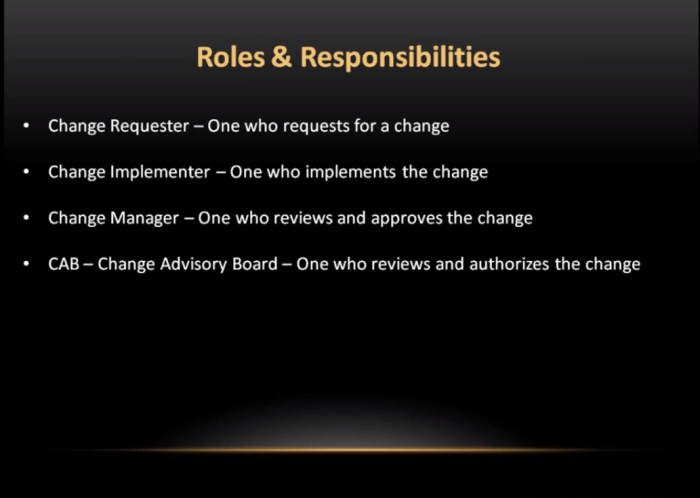
Roles & Responsibilities

picture3