
solution
As a starting point we require to login to our azure portal using url https://portal.azure.com/signin

START CLOUDSHELL
Click the > Shell icon at top right corner of azure portal after this enter the required data as shown below.

Once the ShareFile is created successfully, we should see prompt like below
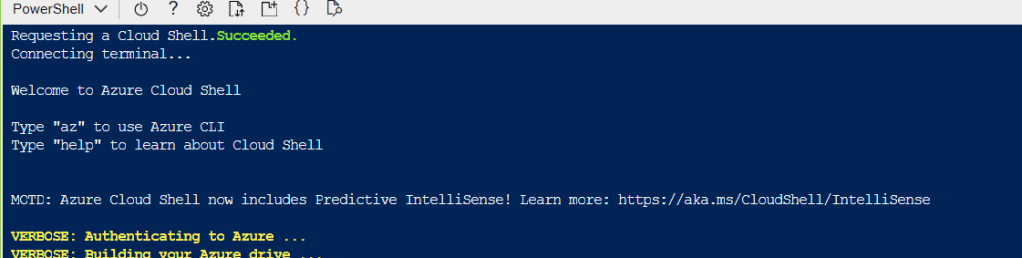
Type command Get-AzVM to get the size of current VM it show output like below.

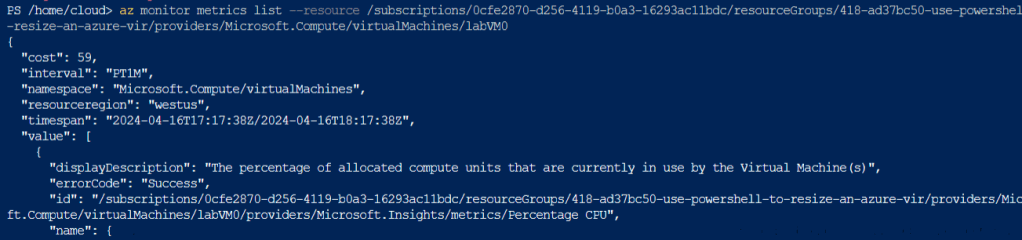
Check VM CPU metrics, using command it should give output like below.
az monitor metrics list –resource /subscriptions/<ID>/resourceGroups/<ResourceGroupName>/providers/Microsoft.Compute/virtualMachines/labVM0
Create variable with name VM and assign the value to it using below command.
$vm variable:$vm = Get-AzVM -ResourceGroupName <RESOURCE_GROUP_NAME> -VMName XXXVM
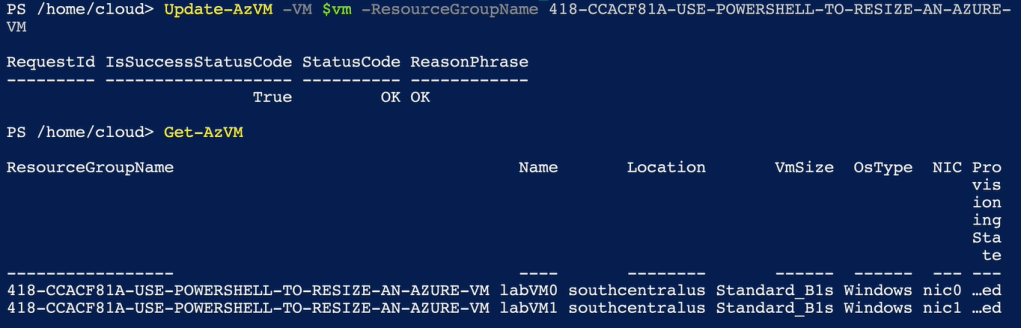
Perform the PowerShell commands to resize the VM(s):$vm.HardwareProfile.VmSize = "Standard_B1s" Update-AzVM -VM $vm -ResourceGroupName <RESOURCE_GROUP_NAME>
Once we execute this command it will re-size the VM and we can see the output under below screenshot we can see now the VM has been re-sized to B1s from B2s
 DEVOPS | CLOUD | TOOLS