
azure container registry (ACR)
Azure Container Registry (ACR) is a cloud-based service for managed, private registries based on Docker Registry 2.0. It allows users to store and manage container images and artifacts privately. You can use ACR to create and maintain Docker container registries in the Azure cloud. ACR is a private, managed, and secure registry service that allows users to store and manage container images
CREATING ACR USING AZURE-CLI
To create an Azure Container Registry (ACR) using Azure CLI, you can use either CloudShell or Azure PowerShell. After logging into Azure PowerShell, execute the command below to create the ACR:
az acr create --resource-group <resource-group> --name <registry-name> --sku Basic --admin-enabled true
Once ACR created we can go ahead and check under azure portal it will show us the create ACR here name is lab4devops

CREATING A TOMCAT IMAGE USING AZ COMMANDS
- Clone the Service Fabric getting started with Java samples repository on your development computer.
clone https://github.com/Azure-Samples/service-fabric-java-getting-started.git - Change directories to the Apache Tomcat server sample directory (service-fabric-java-getting-started/container-apache-tomcat-web-server-sample):
cd service-fabric-java-getting-started/container-apache-tomcat-web-server-sample - Create a Docker file based on the official Tomcat image located on Docker Hub and the Tomcat server sample. In the service-fabric-java-getting-started/container-apache-tomcat-web-server-sample directory, create a file named Dockerfile (with no file extension). Add the following to Dockerfile and save your changes:
FROM library/tomcat
EXPOSE 8080 COPY
./ApacheTomcat /usr/local/tomcat - Now from the above DIR execute below command to create the custom tomcat image and push it to above created ACR.
az acr build --registry lab4devops --image tomcat-custom --file Dockerfile .
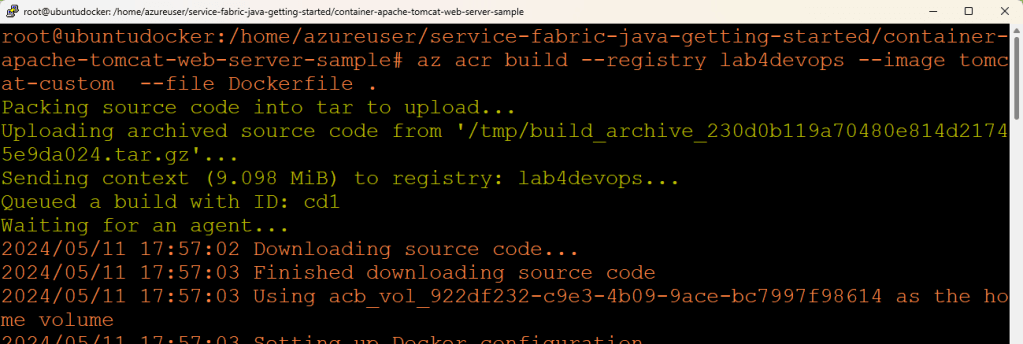
Once the image is created and pushed, we can cross verify the same under our azure portal via navigating shown below

Now as image is created and pushed we can now try pulling it and running it under Azure Container Registry itself.
PULLING AND RUNNING THE CUSTOM TOMCAT IMAGE
Now using mentioned AZ Container command, we will try to pull and run the custom tomcat image from our lab4devops docker registry.
use below command substituting resource group name, registry name, image name , registry password and register username appropriately.
Once this command completes successfully, it will give us a public IP refer below.

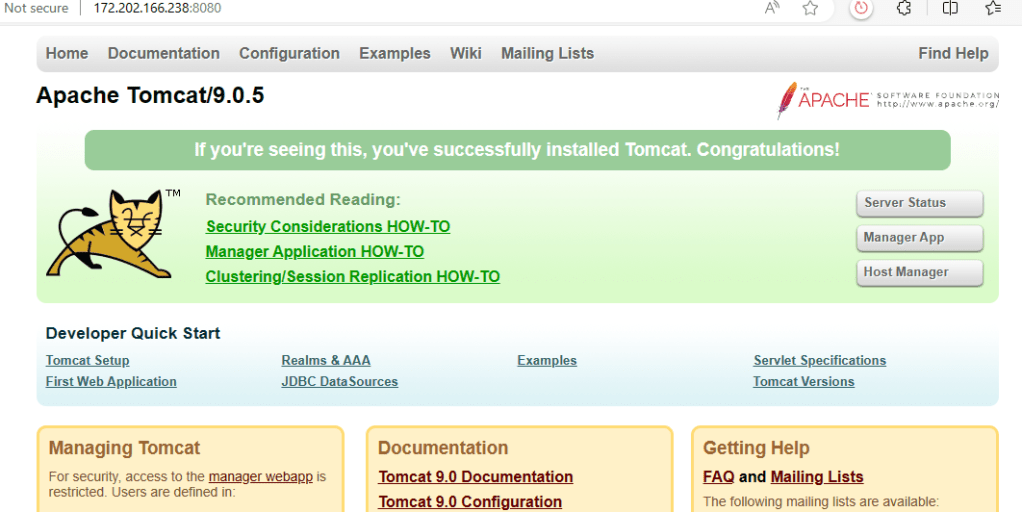
Once we receive the IP if we hit the IP over browser at port number 8080 using this URL we should get below page.
http://<<generatedpublicip>:8080/
Conclusion
We created ACR (Azure Container Registry) created a custom tomcat image pushed it to ACR and then used AZ ACR Create command to pull and execute the image as running container.
 DEVOPS | CLOUD | TOOLS