Maven build profiles

Creating a sample application

  1. From command prompt just execute
    mvn archetype:generate
    -DgroupId=com.companyname.bank 
    -DartifactId=consumerBanking 
    -DarchetypeArtifactId=maven-archetype-quickstart 
    -DinteractiveMode=false

    it will create project under the current directory with folder name consumerbanking

  2. Next open the file pom.xml under consumerbanking folder and modify it as suggested
    <project xmlns="http://maven.apache.org/POM/4.0.0"
       xmlns:xsi="http://www.w3.org/2001/XMLSchema-instance"
       xsi:schemaLocation="http://maven.apache.org/POM/4.0.0
       http://maven.apache.org/xsd/maven-4.0.0.xsd">
       <modelVersion>4.0.0</modelVersion>
       <groupId>com.companyname.projectgroup</groupId>
       <artifactId>project</artifactId>
       <version>1.0</version>
       <profiles>
          <profile>
          <id>test</id>
          <build>
          <plugins>
             <plugin>
                <groupId>org.apache.maven.plugins</groupId>
                <artifactId>maven-antrun-plugin</artifactId>
                <version>1.1</version>
                <executions>
                   <execution>
                      <phase>test</phase>
                      <goals>
                         <goal>run</goal>
                      </goals>
                      <configuration>
                      <tasks>
                         <echo>Using env.test.properties</echo>
                <copy file="src/main/resources/env.test.properties" tofile
    		    ="${project.build.outputDirectory}/env.properties"/>
                      </tasks>
                      </configuration>
                   </execution>
                </executions>
             </plugin>
          </plugins>
          </build>
          </profile>
       </profiles>
       <dependencies>
          <dependency>
             <groupId>junit</groupId>
             <artifactId>junit</artifactId>
             <version>3.8.1</version>
             <scope>test</scope>
          </dependency>
       </dependencies>
    </project>


  3. Next create three properties files under the folder: \consumerBanking\src\main\resources
    env.properties

    environment=debug

    env.test.properties

    environment=test

    env.prod.properties

    environment=prod
  4. Once all this changes are completed execute the command
    consumerbanking> mvn test –Ptest
    output:

    Results :
    
    Tests run: 1, Failures: 0, Errors: 0, Skipped: 0
    
    [INFO]
    [INFO] --- maven-antrun-plugin:1.1:run (default) @ project ---
    [INFO] Executing tasks
         [echo] Using env.test.properties
    [INFO] Executed tasks
    [INFO] ------------------------------------------------------------------------
    [INFO] BUILD SUCCESS
    [INFO] ------------------------------------------------------------------------
    [INFO] Total time: 4.953 s
    [INFO] Finished at: 2015-09-27T11:54:45+05:30
    [INFO] Final Memory: 9M/247M
    [INFO] ------------------------------------------------------------------------
  5. Profile activation via (maven settings/environment variable/OS/Missing files
  6. Profile Activation via Maven Settings

    Open Maven settings.xml file available in %USER_HOME%/.m2 directory where %USER_HOME% represents user home directory. If settings.xml file is not there then create a new one.

    Add test profile as an active profile using activeProfiles node as shown below in example

    <settings xmlns="http://maven.apache.org/POM/4.0.0"
       xmlns:xsi="http://www.w3.org/2001/XMLSchema-instance"
       xsi:schemaLocation="http://maven.apache.org/POM/4.0.0
       http://maven.apache.org/xsd/settings-1.0.0.xsd">
       <mirrors>
          <mirror>
             <id>maven.dev.snaponglobal.com</id>
             <name>Internal Artifactory Maven repository</name>
             <url>http://repo1.maven.org/maven2/</url>
             <mirrorOf>*</mirrorOf>
          </mirror>
       </mirrors>
       <activeProfiles>
          <activeProfile>test</activeProfile>
       </activeProfiles>
    </settings>

    Now open command console, go to the folder containing pom.xml and execute the following mvn command. Do not pass the profile name using -P option.Maven will display result of test profile being an active profile.


    C:\MVN\project>mvn test

    Profile Activation via Environment Variables

    Now remove active profile from maven settings.xml and update the test profile mentioned in pom.xml. Add activation element to profile element as shown below.

    The test profile will trigger when the system property “env” is specified with the value “test”. Create a environment variable “env” and set its value as “test”.

    <profile>
       <id>test</id>
       <activation>
          <property>
             <name>env</name>
             <value>test</value>
          </property>
       </activation>
    </profile>

    Let’s open command console, go to the folder containing pom.xml and execute the following mvn command.

    C:\MVN\project>mvn test

    Profile Activation via Operating System

    Activation element to include os detail as shown below. This test profile will trigger when the system is windows XP.

    <profile>
       <id>test</id>
       <activation>
          <os>
             <name>Windows XP</name>
             <family>Windows</family>
             <arch>x86</arch>
             <version>5.1.2600</version>
          </os>
       </activation>
    </profile>

    Now open command console, go to the folder containing pom.xml and execute the following mvn commands. Do not pass the profile name using -P option.Maven will display result of test profile being an active profile.
    C:\MVN\project>mvn test

    Profile Activation via Present/Missing File

    Now activation element to include os detail as shown below. The test profile will trigger when target/generated-sources/axistools/wsdl2java/com/companyname/group is missing.

    <profile>
       <id>test</id>
       <activation>
          <file>
             <missing>target/generated-sources/axistools/wsdl2java/
    		 com/companyname/group</missing>
          </file>
       </activation>
    </profile>

    Now open command console, go to the folder containing pom.xml and execute the following mvn commands. Do not pass the profile name using -P option.Maven will display result of test profile being an active profile.
Frequently used linux commands

  1. grep command
    Description :- its comes from g/re/p (globally search regular expression and print)
    it is used as one of the most used command under unix
    Usage:-

    • Find count of matching words
      grep -c “queue” sanj_ms1.log”
      this will find the number of occurence of queue word in the file sanj_ms1.log
    • Showing particular number of lines from the file after the matching word
      grep  -C 2 “queue” “sanj_ms1.log”
    • Different variant of grep command
      • pgrep is the command to give the process id for a supplied process argument
        pgrep -if java
      • grep -i do case insensetive search
        this searches for the given string/pattern case insitively. So it matches all the words wether occuring in lower or uppercase
        grep -i “string” FILE
      • zgrep is used to search for particular string under zip files
        zgrep -iw “less” “filename.txt.gz
  2. SCP command:- SCP command or secure copy is used for transferring of files to remote machine or transfer the files between two remote machines it uses the SSH protocol
    syntax/examples can be reffered @ http://www.hypexr.org/linux_scp_help.php
  3. Find command :-  This command is widely used for searching of files across the system using required parameters
    • Finding files 5 days older
      find /path/to/files* -mtime +5 -exec rm {} \;

      • 1st argument is path to the files
      • 2nd argument  is -mtime specify the number of days old that file is
        +5 will fetch files which are 5 days older
      • 3rd argument is -exec allow to pass command which needs to be executed on the result like rm {} \;
    • Find the files ignoring case
      • find -iname *.txt
    • Find files as per the size its in bytes
      • find . -size +1000c -exec ls -l {} \;
      • find -szie +1000c -size -50000c -printing
  4. netstat -tulpn | grep –color :80
  5. to extract the tarball
    1. untar -xvf filename.tar -C /tmp/dirname
  6. Finding file between two dates/timestamps
    1. find . -type f -newermt 2010-10-07 ! -newermt 2014-10-08
      returns a list of files that havve timestamps after 2010-10-07 and before 2014-10-06
    2. Find files 15 minutes ago until now:
      1. find . -type f  -mmin -15
        Returns list of files that have timestamps after 15 mins ago but before now
    3. Find files between two timestamps
      1. find . -type -newermt “2014-10-08  10:17:00” ! -newermt “2014-10-08  10:53:00”
        returns files with timestamps between 2014-10-08 10:17:00 and 2014-10-08 10:53:00
  7. Export command examples
    1. export | grep ORACLE
      declare -x ORACLE_BASE=”/u01/app/oracle”
      declare -x ORACLE_HOME=”/u01/app/oracle/product/10.2.0″
      declare -x ORACLE_SID=”med”
      declare -x ORACLE_TERM=”xterm”
  8. View the content of the file without unziping it
    1. unzip -l jasper.zip
        Length     Date   Time    Name
       --------    ----   ----    ----
          40995  11-30-98 23:50   META-INF/MANIFEST.MF
          32169  08-25-98 21:07   classes_
          15964  08-25-98 21:07   classes_names
          10542  08-25-98 21:07   classes_ncomp
  9. FTP Commands 
    • ftp IP/hostname
      ftp> mget *.html
    • ftp> mls *.html
      /ftptest/features.html
      /ftptest/index.html
      /ftptest/othertools.html
      /ftptest/samplereport.html
      /ftptest/usage.html
  10. CronTab command
    • View corntab entry for specific user
      crontab -u john -l
    • Schedule a cron job every 10 minutes
      */10 * * * * /home/ec2-user/check-disk-space


JIRA on EC2 Micro instance with Ubuntu and Postgres

atlassian-jira-logo-large_large

  1. Click EC2
  2. Under “Create Instance”, click “Launch Instance”
  3. Scroll down to Ubuntu Server 13.10 (ami-ad184ac4) and select the 64 bit version
  4. Follow the rest of the steps to create the instance. Download the private key if you don’t already have one. Also you may need to chmod the key: chmod 0700 ~/Downloads/my-ec2-key.pem

Connect into the machine and set up a password

7. From a terminal, ssh -i ~/Downloads/my-ec2-key.pem ubuntu@ec2-internal-ip-address-domain.compute-1.amazonaws.com
8. Enable password authentication: sudo vim /etc/ssh/sshd_config, change PasswordAuthentication from no to yes
9. sudo reload ssh
10. Set a password: sudo passwd ubuntu

Download JIRA and install

11. mkdir downloads; cd downloads
12. Download JIRA. Here’s the version I used, you probably want the latest: wget http://www.atlassian.com/software/jira/downloads/binary/atlassian-jira-6.1.2-x64.bin
12. Make the installer executable chmod u+x atlassian-jira-6.1.2-x64.bin
13. sudo ./atlassian-jira-6.1.2-x64.bin
14. Run through the JIRA setup wizard, default locations are fine
15. curl http://icanhazip.com to get your external ip
16. curl -v http://<external-ip>:8080 should work at this point
(If not, check your AWS security group in the EC2 management console and allow traffic through port 8080.)

Install and configure Postgres

17. sudo apt-get install postgresql
18.
sudo su – postgres
19.
createuser -P jira
20. Answer no to superuser, yes to be allowed to create databases, no to being able to generate more roles
21.
logout
22.
sudo su – jira
23.
createdb jiradb`

Tweak JIRA

24. cd /opt/atlassian/jira/bin
25. sudo vim setenv.sh
(If running vim with sudo won’t let you write to the file, you may need to sudo chmod +w setenv.sh then sudo chmod -w setenv.sh after step 26.)
26. Modify in the appropriate places to end up with these lines

JVM_SUPPORT_RECOMMENDED_ARGS="-Datlassian.plugins.enable.wait=300"
JIRA_MAX_PERM_SIZE=512m

Create a swap file

27. sudo dd if=/dev/zero of=/var/swapfile bs=1M count=2048
28. sudo chmod 600 /var/swapfile
29. sudo mkswap /var/swapfile
30. echo /var/swapfile none swap defaults 0 0 | sudo tee -a /etc/fstab
40. sudo swapon -a

At this point you’re getting pretty close to something that might work.

My advice is try sudo reboot and let the whole thing come back up again. Log in using your password you set on ubuntu. (You should no longer need the -i flag on the ssh command.)

Once you can ssh back into the system, give that curl -v http://<external ip>:8080 command another try.

If all goes well, fire up your web browser and try setting it up from there. Be aware that the first few loads of these pages may be slower than normal.

Browser config

41. Database config–this should be pretty straightforward, you’ll need to use the same username/database name/password as you set up already. Username should be jira, database name should be jiradb, default port 5432 should be fine. (It sets that when you select Postgres). You’ll need to set the hostname to localhost.
42. Choose the name of your instance. I chose the defaults for most all the other steps in the wizard.
43. Log in with an Atlassian account to create a trial license key. If you don’t have an account, you’ll need to create one.
44. If you see the System Dashboard page, all is well. You can adjust your time zone.

At this point you should have up and running JIRA on an EC2 micro instance with the latest Ubuntu, backed by Postgres. If not, hit me up in the comments and I’ll try to get you straightened out.

Maven basics

Maven POM                                                                                  download
Part of pom.xml
• Project dependencies
• Plugins
• Goals
• Build profiles
• Project version
• Developers
• Mailing list

Node Description
GroupID Is the id of the project’s group
ArtifactID is the id of the projects
Version Is the version of the project

Super pom
All pom inherits from super pom parent pom

Maven Build Lift Cycle

Phase Handles Description
prepare-resources resource copying Resource copying can be customized in this
phase.
compile compilation Source code compilation is done in this phase.
package packaging This phase creates the JAR / WAR package as
mentioned in packaging in POM.xml.
install installation This phase installs the package in local / remote
maven repository

There are always pre and post phases which can used to register goals which need to be executed pre or post phase.
Maven when executed it steps through the define phase and execute the goal registered with each of the phase. Maven has following three lifecycles:
• Clean
• Default
• Site
A goal represent a specific task which may be bound to zero or more build phases some goals can reside outside phases also and can be called independently of phases.
Clean Lifecycle
When maven executes post-clean command maven invokes the clean lifecycle consisting of the following phases.
• Pre clean
• Clean
• Post-clean
Maven clean goals deletes the build directory
Site Lifecycle
Maven site plugin is generally used to create fresh documentation to create reports,deploy site etc
Phases
• Pre site
• Site
• Post site
• Site deploy
Maven build profile

A build profile is a set of values that can be used to set or override default values of Maven build using build profile we can customize the build for different environments such as QA,UAT,PRODUCTION.
Profiles are specified in pom.xml using activeProfiles/Profiles elements and are triggered in variety of ways.
Build Profile Types

  • Per Project Defined in project pom file
  • Per user Defined in Maven settings.xml file (%user_home%/.m2/settings.xml)
  • Global Defined in Maven global settings.xml file (%M2_HOME%/conf/settings.xml

Sample command : mvn test –Ptest

Maven Repository

A maven repository is a place i.e. directory where all the project jars,library jars,plugins other project artifacts are stored and can be used by Maven.
Maven repositories are of three types:-
i) Local
ii) Central
iii) Remote
Local repository
Maven local repository is a folder location on your machine. Its gets created when you run any maven command for the first time.
When we run the maven it automatically downloads all the dependencies under local repository
by default it gets created under %USER_HOME% directory. To override the default location, mention another path in Maven settings.xml file available at %M2_HOME%\conf
Central repository
It’s a maven community repository maintained by maven community under the url: http://repo1.maven.org/maven2/
Key points
• This repository is managed by maven community
• It is not required to be configured
• It requires internet access to be searched
Remote repository
Remote repository is developers own repository in case dependencies are not found under central as well as local repository it’s searched the same under remote repository.

Maven Dependency search sequence
• Searches dependencies under local repository if not found goes central repository in case not in central repository than go to remote repository if remote repository not specified throws error message
• Search dependency in central repository if not than to remote repository
• If remote repository not mentioned maven finds error

AWS GLOBAL INFRASTRUCTURE [VPC, IGW, ROUTE TABLES, NACLs, Subnets, AZ |

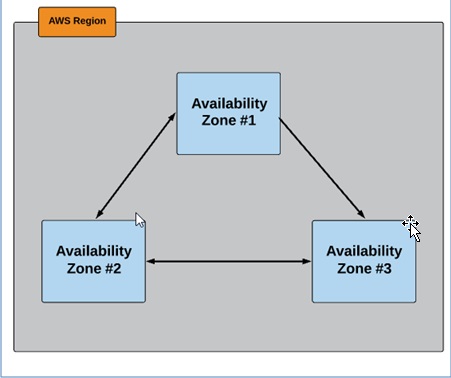
AWS Regions:

  • A grouping of aws resources located in specific geographical locations
  • Designed to serve aws customer/users that are located closest to the region
  • Regions are comprised of multiple availability zones

infra1

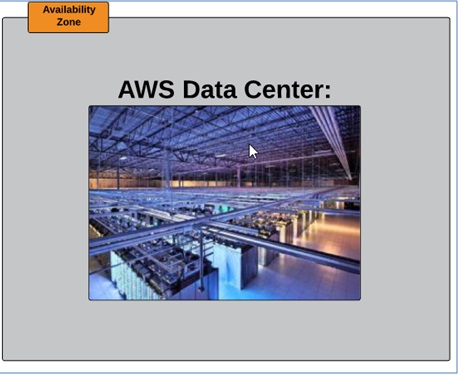
AWS Availability zone

  • Geographically isolated zones within same region that houses AWS resources
  • AZs are where separate, physical AWS data centres are located
  • Multiple AZs in each region provide redundancy for AWS resources in that region

infra2

Where the physical hardware that runs AWS services is located.

infra3

infra4

VPC (Virtual Private Cloud)

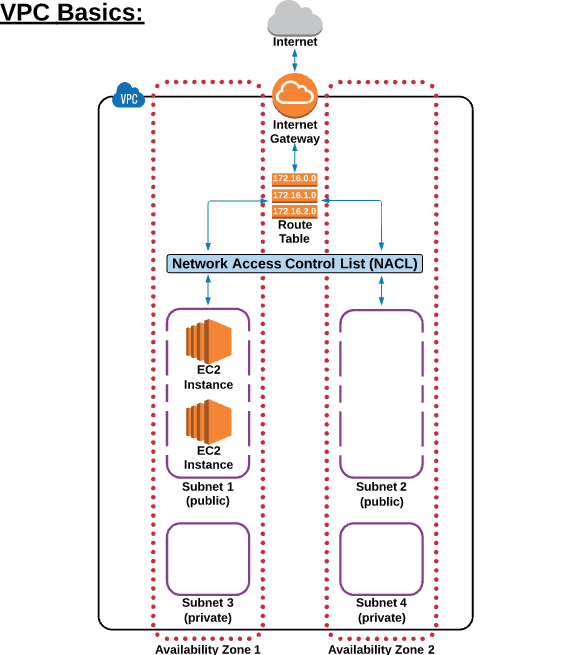
A private sub-section of AWS that we control in which we can put our aws resources and we have full control over it and also who should have access to AWS resources under that VPC. When we create a aws account default VPC is got created.

infra5


When we create an AWS account a default VPC got created including the standard components that are needed to make it functional

  1. Internet Gateway
  2. A route table
  • A network access control list
  1. Subnets to provision AWS resources

IGW

An internet gateway is a redundant and highly available VPC component that allows communication between instances between VPC and Internet it doesn’t imposes no availability risks or bandwidth constraints on our network traffic.
Route tables rules and details:-

  1. Only 1 IGW can be attached to a VPC
  2. IGW can not be detached from VPC while there are active AWS resources in the VPC

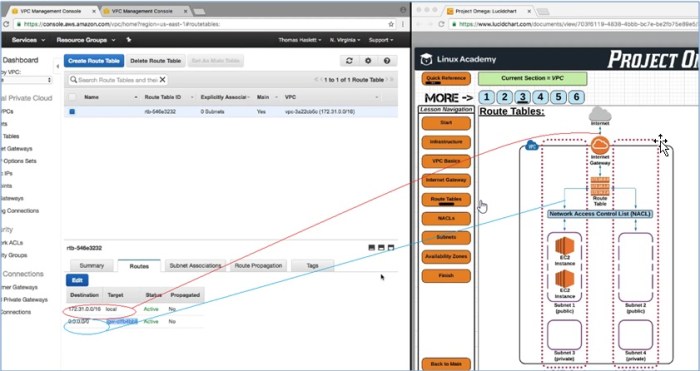
Route Tables

Route tables contains a set of rules called as routes which are used to determine where to divert the traffic route tables with dependencies can’t be deleted single VPC can have multiple active route tables. It provides connection between various resources within VPC. Default VPC already has a main route table.

infra6

NACL

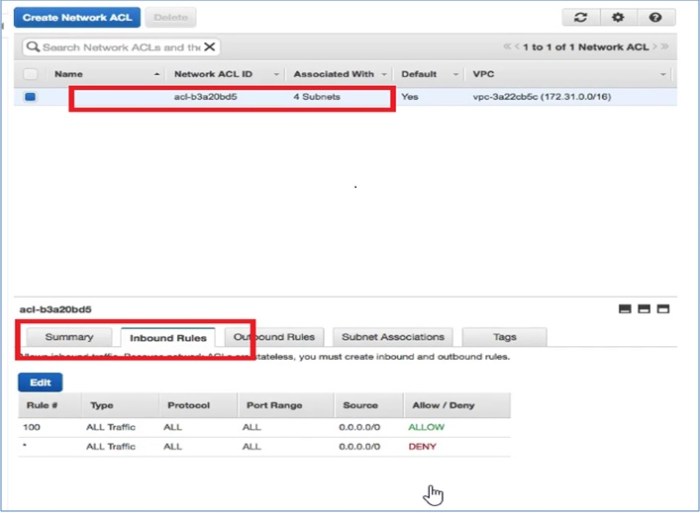
A Network access control list (NACL) is an optional layer of security for the VPC that acts as firewall for controlling traffic in and out of one or more subnets.
The default VPC already has  a NACL in place and associated with the default subnets. It lies between any of the route table and the subnet

infra7

They have both inbound and outbound rule
there are some NACL rules depicted below:

infra12

infra8

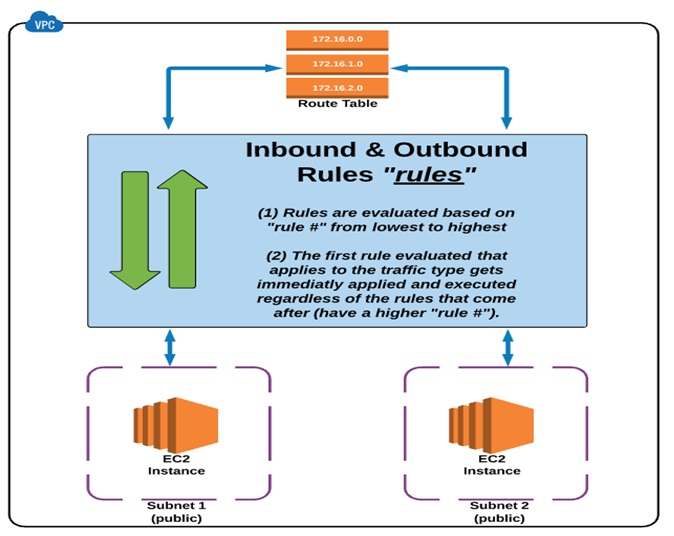
NACL rules:

  1. Rules are execucted from lowest to highest based on “rule #”
  2. The first rule found that applies to the traffic type is immediately applied regardless of any rules that come after it
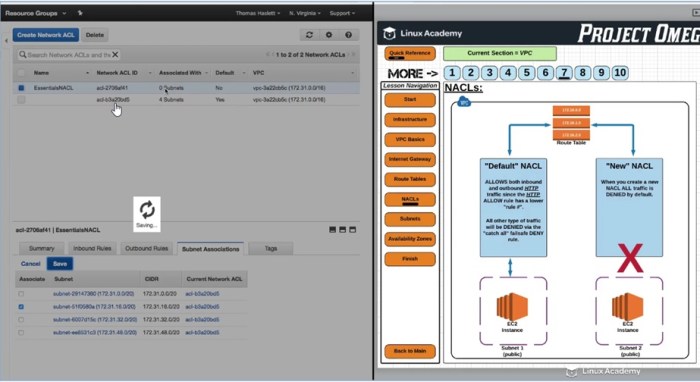
  • The default NACL allows all traffic to default subnets
  1. Any new NACL by default denies all the traffic
  2. A subnet can only be associated with one NACL at a time
  3. An NACL allows or denies traffic from entering to subnet once its inside subnet additional layer of security come into play at instance level

Subnet

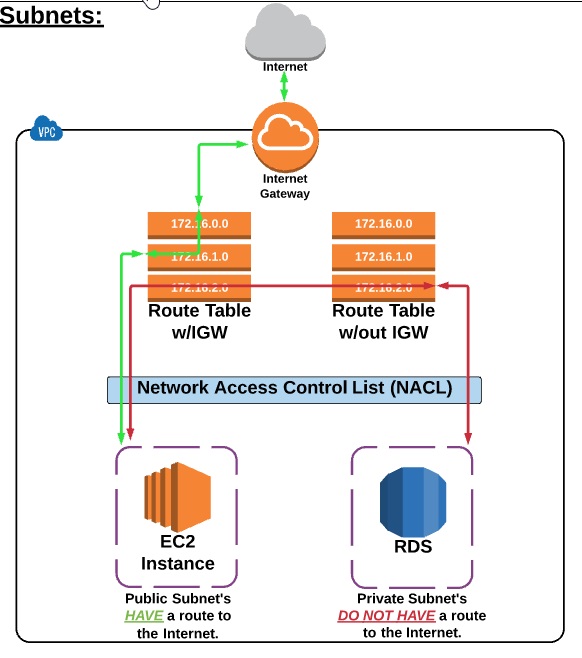
When we create  a VPC it spans all of the availability zones in the region after creating a VPC we can add one or more subnet in each Availability zone each subnet must reside entirely within one AZ and can span across AZs.
Subnet Rules:

  1. Subnet MUST be associated with route table
  2. A private subnet doesn’t not have route to internet
  • A subnet is located in one specific AZ.

infra9


AWS GLOBAL INFRASTRUCTURE [VPC, IGW, ROUTE TABLES, NACLs, Subnets, AZ |

AWS Regions:
• A grouping of aws resources located in specific geographical locations
• Designed to serve aws customer/users that are located closest to the region
• Regions are comprised of multiple availability zones

AWS Availability zone
• Geographically isolated zones within same region that houses AWS resources
• AZs are where separate, physical AWS data centres are located
• Multiple AZs in each region provide redundancy for AWS resources in that region

Where the physical hardware that runs AWS services is located.

VPC (Virtual Private Cloud)
A private sub-section of AWS that we control in which we can put our aws resources and we have full control over it and also who should have access to AWS resources under that VPC. When we create a aws account default VPC is got created.

When we create an AWS account a default VPC got created including the standard components that are needed to make it functional
i) Internet Gateway
ii) A route table
iii) A network access control list
iv) Subnets to provision AWS resources
IGW
An internet gateway is a redundant and highly available VPC component that allows communication between instances between VPC and Internet it doesn’t imposes no availability risks or bandwidth constraints on our network traffic.
Route tables rules and details:-
i) Only 1 IGW can be attached to a VPC
ii) IGW can not be detached from VPC while there are active AWS resources in the VPC
Route Tables
Route tables contains a set of rules called as routes which are used to determine where to divert the traffic route tables with dependencies can’t be deleted single VPC can have multiple active route tables. It provides connection between various resources within VPC. Default VPC already has a main route table.

NACL
A Network access control list (NACL) is an optional layer of security for the VPC that acts as firewall for controlling traffic in and out of one or more subnets.
The default VPC already has a NACL in place and associated with the default subnets. It lies between any of the route table and the subnet

They have both inbound and outbound rule
there are some NACL rules depicted below:

NACL rules:
i) Rules are execucted from lowest to highest based on “rule #”
ii) The first rule found that applies to the traffic type is immediately applied regardless of any rules that come after it
iii) The default NACL allows all traffic to default subnets
iv) Any new NACL by default denies all the traffic
v) A subnet can only be associated with one NACL at a time
vi) An NACL allows or denies traffic from entering to subnet once its inside subnet additional layer of security come into play at instance level
Subnet
When we create a VPC it spans all of the availability zones in the region after creating a VPC we can add one or more subnet in each Availability zone each subnet must reside entirely within one AZ and can span across AZs.
Subnet Rules:
i) Subnet MUST be associated with route table
ii) A private subnet doesn’t not have route to internet
iii) A subnet is located in one specific AZ.

ACCESSING AMAZON RESOURCES VIA CLI / Command

ACCESSING AMAZON RESOURCES VIA CLI / Command

Requirement
1. Download
https://aws.amazon.com/cli/
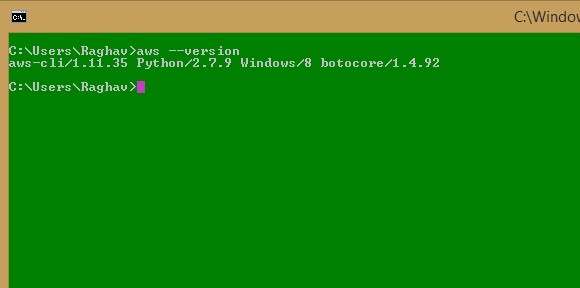
Once its installed we can go to command prompt and confirm the same by running command aws –version

cli1

2. Post installation of the package we need to download the access keys (Access key ID , Secret key)
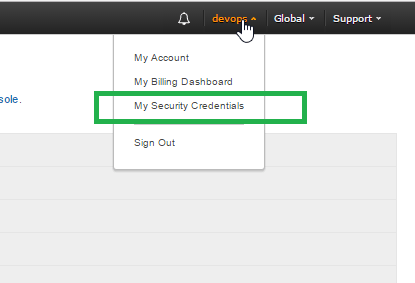
3. Just login to amazon console https://aws.amazon.com/console/ go to top right and click on the account name as shown under below screenshot and click the menu My Security Credentials

cli2

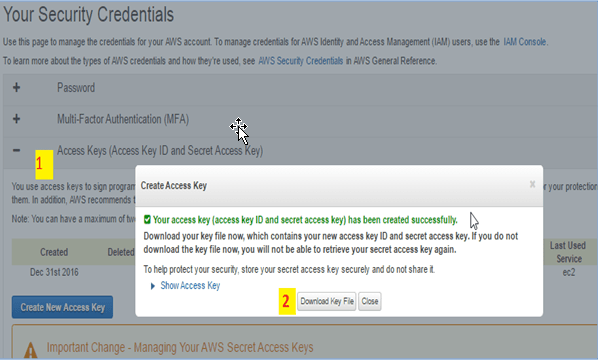
4. Next Click on the option Access Keys and then Download Keys as shown below

cli3

5. Post clicking the the Download Key file keys will be downloaded in CSV format save it under a secure place
6. Next we need to configure aws on CLI on command prompt just need to enter command
aws configure we need to use the Key Generated in previous step for configuration purpose.

aws configure
> AWS Access Key ID [None]: AKIAIOSDNN7EXAMPLE
> AWS Secret Access Key [None]: XUtnFEMI/K7MDENG/bPxRfiCYEXAMPLEKEY
> Default region name [None]: us-west-2
> Default output format [None]: ENTER

7. Once above command completed successfully we can further start using respective EC2 commands to manage the EC2 resources accordingly
8. Also before using the command we need to make sure we have set the region to correct location
Few of the commonly used commands

Command to start a EC2 instance
• aws ec2 start-instances –instance-ids i-1234567890abcdef0
Command to stop a EC2 instance
• aws ec2 stop-instances –instance-ids i-1234567890abcdef0

2. Post installation of the package we need to download the access keys (Access key ID , Secret key)
3. Just login to amazon console https://aws.amazon.com/console/ go to top right and click on the account name as shown under below screenshot and click the menu My Security Credentials

4. Next Click on the option Access Keys and then Download Keys as shown below
uj

5. Post clicking the the Download Key file keys will be downloaded in CSV format save it under a secure place
6. Next we need to configure aws on CLI on command prompt just need to enter command
aws configure we need to use the Key Generated in previous step for configuration purpose.

aws configure
> AWS Access Key ID [None]: AKIAIOSFODNN7EXAMPLE
> AWS Secret Access Key [None]: wJalrXUtnFEMI/K7MDENG/bPxRfiCYEXAMPLEKEY
> Default region name [None]: us-west-2
> Default output format [None]: ENTER

7. Once above command completed successfully we can further start using respective EC2 commands to manage the EC2 resources accordingly
8. Also before using the command we need to make sure we have set the region to correct location

Few of the commonly used commands

Command to start a EC2 instance
• aws ec2 start-instances –instance-ids i-1234567890abcdef0
Command to stop a EC2 instance
• aws ec2 stop-instances –instance-ids i-1234567890abcdef0

LDAP INTEGRATION WITH JENKINS

LDAP CONFIGURATION UNDER JENKINS
Requirement
1. Jenkins installed with LDAP plugin
2. LDAP setup up and running for this demo we have used openLDAP help
http://www.forumsys.com/en/tutorials/integration-how-to/ldap/online-ldap-test-server/
Go to the Jenkins menu as per the links:

Jenkins >> Configure Global Security >>

Check the LDAP option

pic1

Post under LDAP details put the all the required details as show:
pic2
Details can be get from
http://www.forumsys.com/en/tutorials/integration-how-to/ldap/online-ldap-test-server/
Post that we should see login option enabled on top right side of Jenkins:

pic3

If all config thing went well for LDAP setting we should be able to login with LDAP credentials be happy !!

pic5


AWS Identity & Access Management [IAM]

Identity & Access Management

AWS identity and access management is webservice that helps  to securely control the aws resource authentication and authorization

The common use of IAM is to manage:

  • Users
  • Groups
  • IAM access policies
  • Roles

IAM Initial setup and Configuration

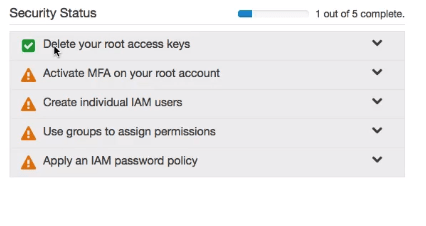
When a new AWS root account is created its best practice to complete the task listed in IAM under “Security Status”
The task includes

s1


  • What is MFA its
    • Its Multi Factor authentication
  • Way to get  code


VIRTUAL MFA DEVICE

  • Using smartphone or tablet
  • Commonly used app like google authenticator

HARDWARE KEY FOB:

  • Small physical device like RSA
  • Can be ordered from amazon

Below is the screenshot depicting how MFA works


Good Practice using MFA:-

  • AWS best practice is to Never use root account for day-to-day use in case full admin access required by a user it should be granted AdminsitratorAccess policy to it.
  • It can more convenient and efficient to set up groups and assign permission to the group rather assigning permission to each user individually
  • When a new AWS root account is created it is best practice to complete below task under Security Status
    • Delete your root access keys
    • Activate MFA on your root account
    • Create individual IAM users
    • User groups to assign permissions
    • Apply an IAM password policy

USER & POLICIES

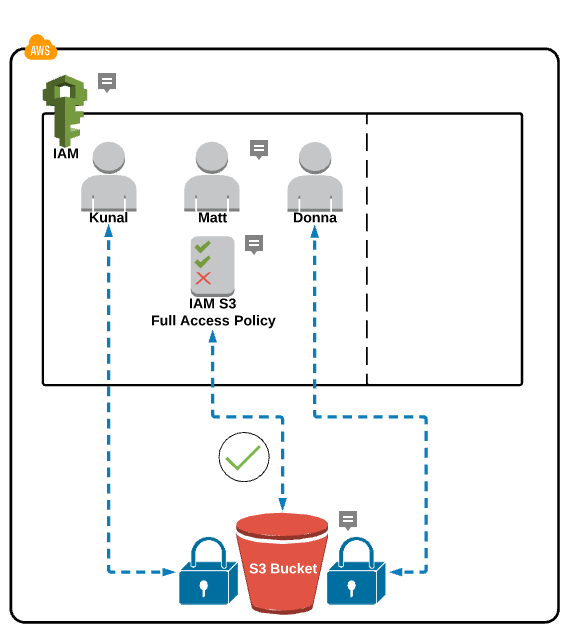
Take below reference case

  • We have three users Kunal,Matt,Dona currently out of this Matt having access to S3 bucket but not Kunal and Dona because S3Bucket policy has been only assigned to Matt
  • So to provide Kuanl and Donna the S3 bucket access which is currently not available to them we need to go to their user profile and add SEpolicy udner their profile post doing this S3 will be accessible by all the three users i.e. Kunal , Matt,Donna

GROUP AND POLICIES

TO REMOVE POLICY USE DETACH POLICY OPTION

Above is a scenario were we have Group Name: Dev Users assign to the group are:  Kunal,Matt,Donna currently no policies has been assigned to the group Dev so no one can access the S3 bucket once  we have assigned the S3 policy to the group Dev then all the users inside this group can have access to S3 bucket.

Post assigning S3 policy to the group now all will be having access to the s3 bucket as depicted in the below screenshot:

In-between we can always remove a user from the group and add him back as per the requirement so the group helps to manage user well by group multiple users under one group.

3

4

6


ROLES:

Suppose we have a EC2 user and a sofgtware running on ec2 instance which needs to access information which is present on S3 bucket but a service cann’t connect to other service to get the information.

So for this we can create a role and assign it to the ec2 service it will help that service(ec2) to act as a user and access s3 bucket and under role we can assign policies same way we assign to groups.


So we can think of role as group which are assigned to other aws services rather than to users to access other aws services.

Below is the screenshot depicting the scenario:

8

7


Elastic Compute Cloud (EC2) Instance and System Status Checks.

Status Checks for Instances

With Instance status monitoring we can easily identify whether amazon EC2 has encountere any problem that might prevent our instances and application work properly.

Status checks are peformed every minute and it returns a pass or fail value. If all checks are pass overall status is OK. If one or more status checks fails overall status is impaired.

Types of Status Checks

There are two types of status checks System status check and Instance status check

System Status check

Monitor the AWS system required to use your instance to ensure they work properly this check detech problems which requires AWS intervention to resolve/repair.when System status check occurs we can wait for AWS to resolve the issue or we can stop and start the instance or by terminating and recreating the instance
Follow are the examples of problems that can cause instance status check to fail:

  • Loss of network connectivity
  • Loss of system power
  • Software issues on the ohysical host
  • Hardware issue on the physical host

Instance Status check

Monitor the software and network configuration of individual instance. This check detech problem which require our involvement when instance check fails we only need to take care.like by rebooting the instance or by making instance configuration changes.

  • Failed system check instance
  • Incorrect networking or startup configuration
  • Exhausted memory
  • Corrupted disk/file system
  • Incompatible kernel

Viewing Status Checks

Amazon EC2 provides you with several ways to view and work with status checks.

Viewing Status Using the Console

You can view status checks using the AWS Management Console.

To view status checks using the console

  1. Open the Amazon EC2 console at https://console.aws.amazon.com/ec2/.
  2. In the navigation pane, choose Instances.
  3. On the Instances page, the Status Checks column lists the operational status of each instance.
  4. To view the status of a specific instance, select the instance, and then choose the Status Checks tab.
  5. If you have an instance with a failed status check and the instance has been unreachable for over 20 minutes, choose AWS Support to submit a request for assistance. To troubleshoot system or instance status check failures yourself, see Troubleshooting Instances with Failed Status Checks.

Viewing Status Using the Command Line or API

You can view status checks for running instances using the describe-instance-status (AWS CLI) command.

To view the status of all instances, use the following command:

aws ec2 describe-instance-status

To get the status of all instances with a instance status of impaired:

aws ec2 describe-instance-status –filters Name=instance-status.status,Values=impaired

To get the status of a single instance, use the following command:

aws ec2 describe-instance-status –instance-ids i-1234567890abcdef0

Alternatively, use the following commands:

If you have an instance with a failed status check, see Troubleshooting Instances with Failed Status Checks.

Creating a Status Check Alarm Using the Console

You can create status check alarms for an existing instance to monitor instance status or system status. You can configure the alarm to send you a notification by email or stop, terminate, or recover an instance when it fails an instance status check or system status check.

To create a status check alarm

  1. Open the Amazon EC2 console at https://console.aws.amazon.com/ec2/.
  2. In the navigation pane, choose Instances.
  3. Select the instance.
  4. Select the Status Checks tab, and then choose Create Status Check Alarm.
  5. Select Send a notification to. Choose an existing SNS topic, or click create topic to create a new one. If creating a new topic, in With these recipients, enter your email address and the addresses of any additional recipients, separated by commas.
  6. (Optional) Choose Take the action, and then select the action that you’d like to take.
  7. In Whenever, select the status check that you want to be notified about.
  8. Note
  9. If you selected Recover this instance in the previous step, select Status Check Failed (System).
  10. In For at least, set the number of periods you want to evaluate and in consecutive periods, select the evaluation period duration before triggering the alarm and sending an email.
  11. (Optional) In Name of alarm, replace the default name with another name for the alarm.
  12. Choose Create Alarm.
  13. Important
  14. If you added an email address to the list of recipients or created a new topic, Amazon SNS sends a subscription confirmation email message to each new address. Each recipient must confirm the subscription by clicking the link contained in that message. Alert notifications are sent only to confirmed addresses.

If you need to make changes to an instance status alarm, you can edit it.

To edit a status check alarm

  1. Open the Amazon EC2 console at https://console.aws.amazon.com/ec2/.
  2. In the navigation pane, choose Instances.
  3. Select the instance, choose Actions, select CloudWatch Monitoring, and then choose Add/Edit Alarms.
  4. In the Alarm Details dialog box, choose the name of the alarm.
  5. In the Edit Alarm dialog box, make the desired changes, and then choose Save.

Reference Link