Running Jenkins under docker container & using jenkins CMD line

INSTALLING DOCKER

INSTALLING JENKINS MASTER AS DOCKER CONTAINER

COMMAND

  • Command to run docker
  • Command to check whether docker started or not
    • docker ps –a

Configuring CLI Jenkins

Jenkins has a built-in command line interface that allows you to access Jenkins from a script or from your shell. This is convenient for automation of routine tasks, bulk updates, trouble diagnosis, and so on.

This interface is accessed via the Jenkins CLI client, which is a Java JAR file distributed with Jenkins.

  • command to download Jenkins-cli.jar file
  • Setting JENKINS_URL variable
  • Setting Jenkins-cli as alias for running Jenkins-cli.jar
    • echo “alias jenkins-cli=’java -jar /var/lib/jenkins/jenkins-cli.jar'” >> ~/.bashrc
  • Authenticate the jenkins
  • Command to install plugin from CLI
    • jenkins-cli install-plugin thinBackup –restart
    • jenkins-cli -auth @jenkinsauth build FOLDER1/Coberutra-Examp
    • jenkins-cli -auth @jenkinsauth list-jobsle

Artifact and Fingerprints in Jenkins

Managing artifacts Fingerprint in Jenkins

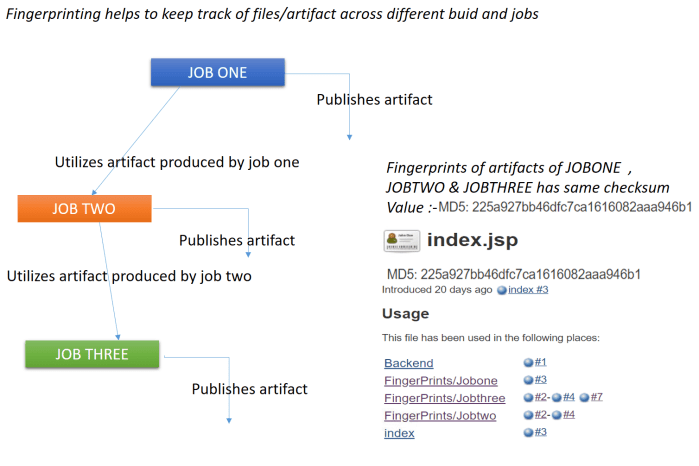
Jenkins fingerprinting helps us to track the file/artifacts across the builds/jobs and we can trace file/artifact source and its version.Suppose we have three different jobs (Jobone ,jobtwo , jobthree) jobone publishes the artifact index.jsp and this artifact is used by jobtwo and then jobtwo also publishes this artifact further.

Next jobthree uses the artifact produced by jobtwo.

So if we want to trace the version of artifacts and to make sure  that artifacts used across different jobs/build originated from same job we can use the fingerprint option in this case if we can check the artirfact at each step for index.jsp the MD5 checksum value will be same for artifact across builds in each cycle.

What is fingerprinting

The fingerprint of a file is MD5 checksum
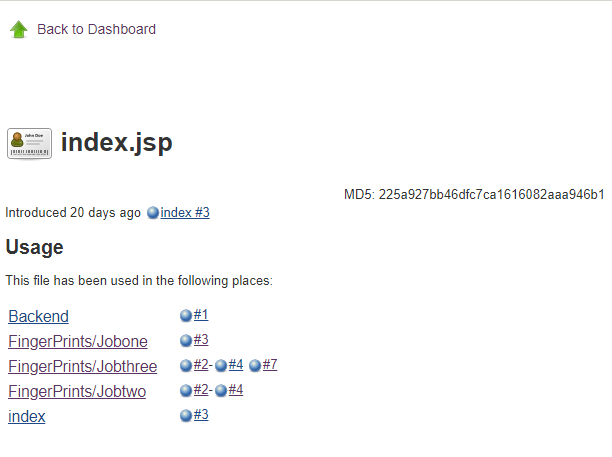
Example :- MD5: 225a927bb46dfc7ca1616082aaa946b1

About fingerprint

Fingerprint is stored as xml file for each of the artifacts on which fringerprinting is enabled. Fingerprinting can be enabled by going in advance option in Jenkins publish artifact option.

Location of fingerprint on Jenkins Master

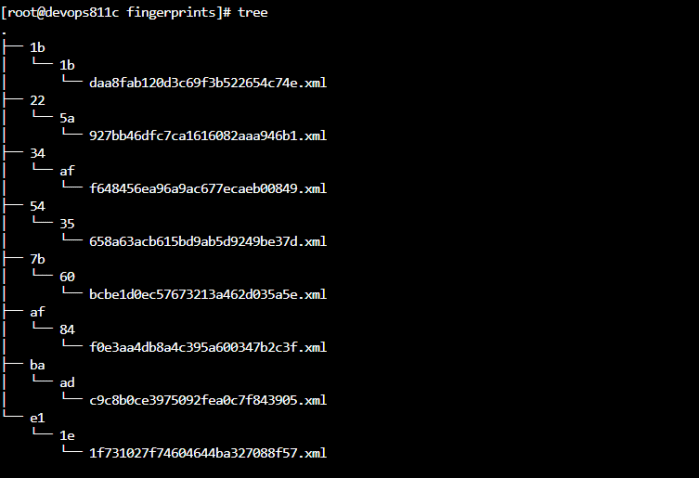
Fingerprint is location under folder $JENKINS_HOME/fingerprints directory on the jenkins master.

fp1

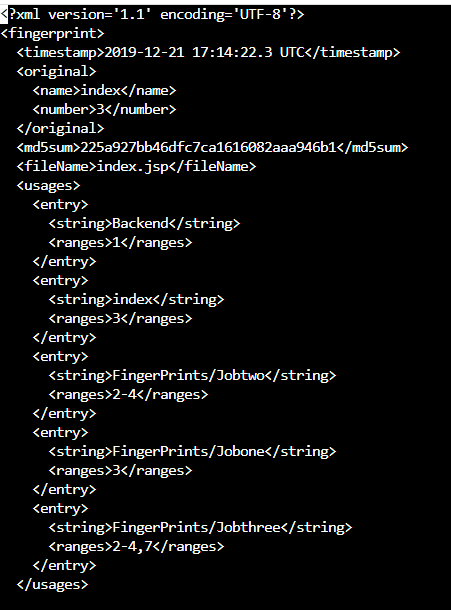
The xml file contains following data :-

  • Timestamp
  • Build number
  • Job name
  • MD5 checksum
  • Fingerprinted file name

Below is sample fingerprint XML filefp2

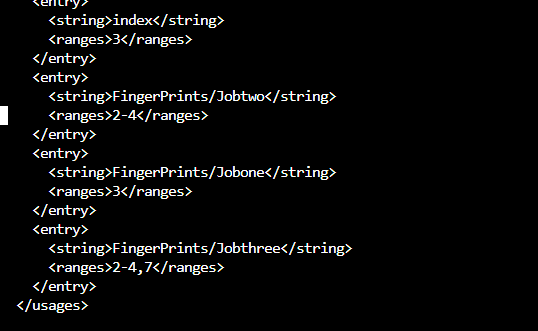
if the file/artifact is used in more than one build, then we can see the usage under the fingerprint xml file , this file shows all the jobs on which the artifact is used. Below screenshot the artifact is used acros job Jobone & Jobthree under located under fingerprints folder.

fp3

Working Example of Fingerprint

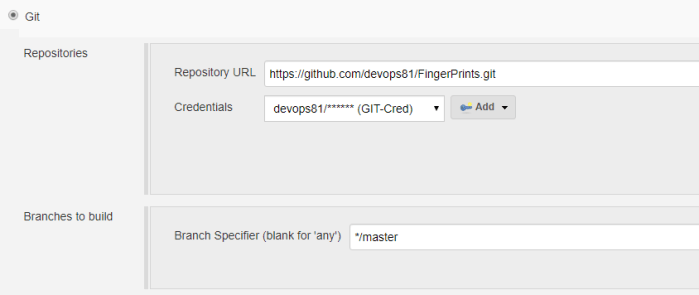
  1. Create a free stylejob using the github url :- https://github.com/devops81/FingerPrints.git
    1. SCM CONFIGURATION
      fp4
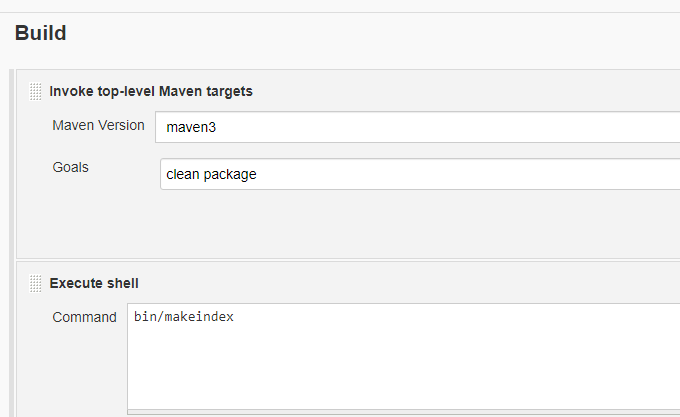
    2. Build step configuration
      fp5
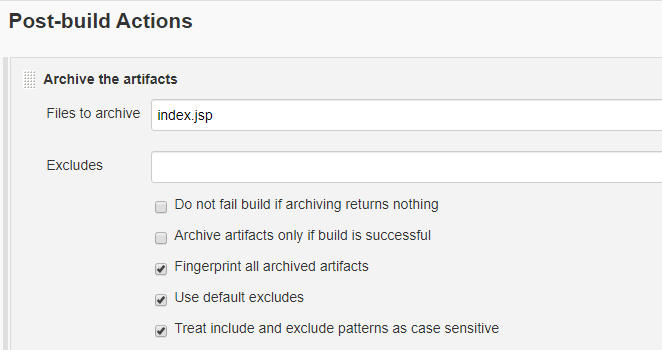
    3. Post build archive artifacts configuration under this step we will archive the file index.jsp which got generate in previous step. Also we need to enable option [fingerprint all teh archived artifacts] .
      fp6

Once we compile the job it should produce index.jsp as artifact and this artifact will contain its fingerprint also

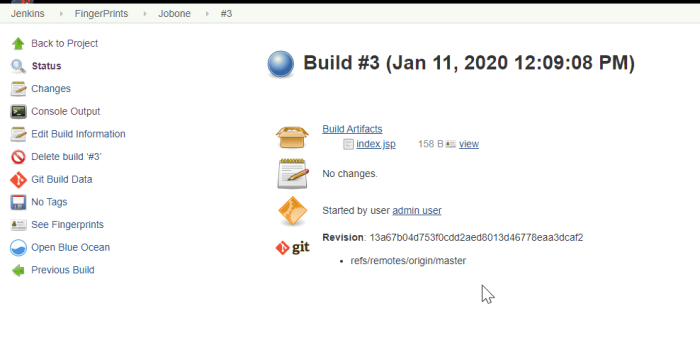
Job execution output :-

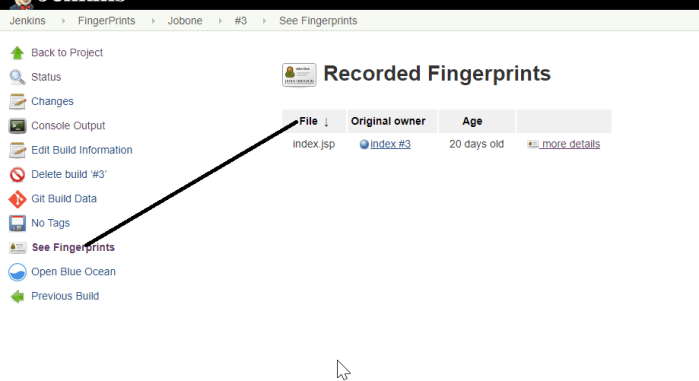
Click on the build on which you want to see the fingerprints and on the left hand side option choose option See Fingerprints

fp8
fp9

Click on more details option so see the actual MD5 value of the fingerprint

fp10

A diagremetatic representation of fingerprint feature in jenkins the MD5 Checksum value of the artifact is same across the job this makes sure we are using correct and required artifact across the builds/jobs.
FPP

Uploading Jenkins artifacts to AWS S3 Bucket

Sometime we require to upload our Jenkins builds to S3 using the mentioned steps we can upload any required artifact from Jenkins to S3 bucket.

Requirement

  • Server with jenkins installed
  • Creation of S3 Bucket over AWS
  • Creating appropriate S3 Bucket over AWS
  • S3 Pubisher plugin
    https://jenkins.io/doc/pipeline/steps/s3/
  • AWS access key and secret key with appropriate permission
    over S3 bucket to upload files

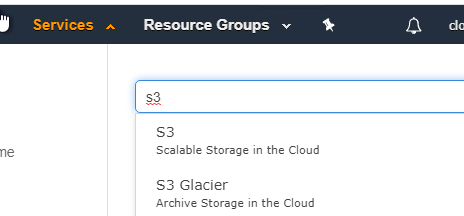
Choose S3 as service from AWS service menu

one

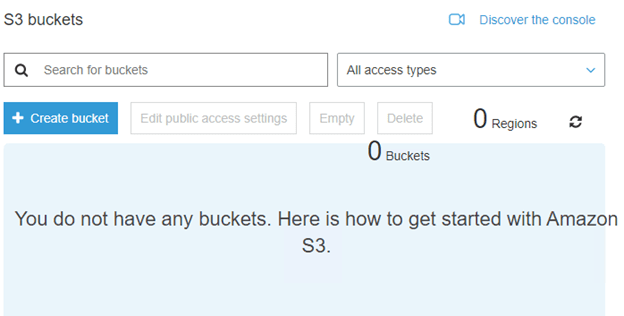
Next create on the option create bucket :-

two

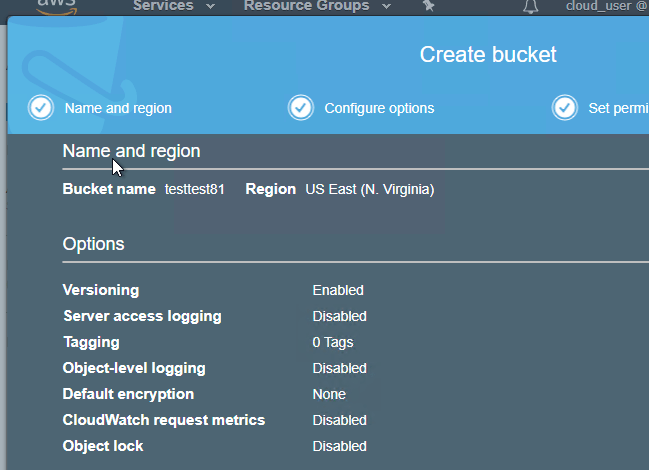
Give appropriate bucket name as per the rules choose required region keep clicking next and choosing required options like versioning at final stage it will show whatever option we have chosen and then click on the create bucket option

three

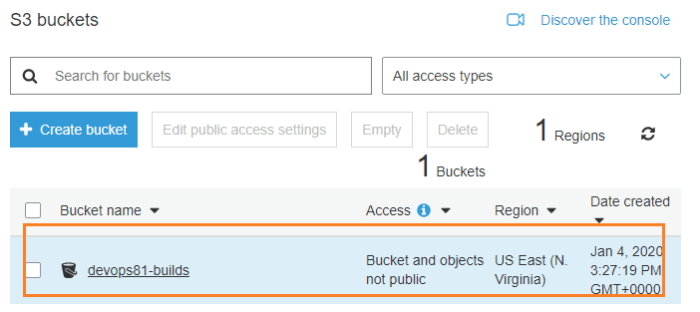
Once the bucket is created we can see under our S3 Bucket here we have crate bucket with name devops81-builds refer below SS.

four

Install S3 publisher plugin


  1. Go to Manage Jenkins >> Manage plugins and select Available tab. Find “S3 Plugin” and install it.
    https://jenkins.io/doc/pipeline/steps/s3

    five


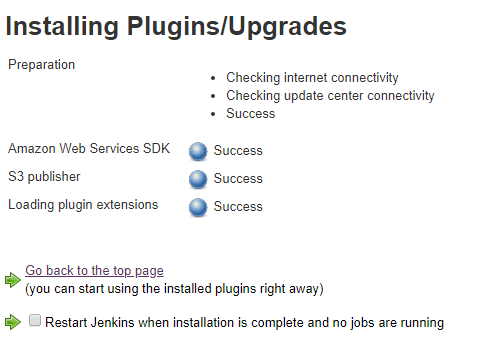
  2. Once Plugin successfully installed it should show as below

    six

Adding S3 Profile under jenkins

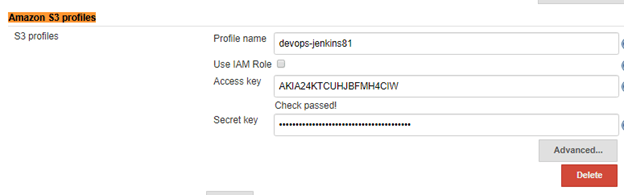
Once S3 Publisher is installed properly we require to setup Amazon s3 profile to setup Amazon S3 profiles go to Manage jenkins >> Configure System >> Amazon S3 Proiles click on ADD to add S3 Profile give require details Profile name , access key , secret access key of the account using which we will upload the artifact over S3.

seven

Configuring Jenkins Build to Publish artifacts

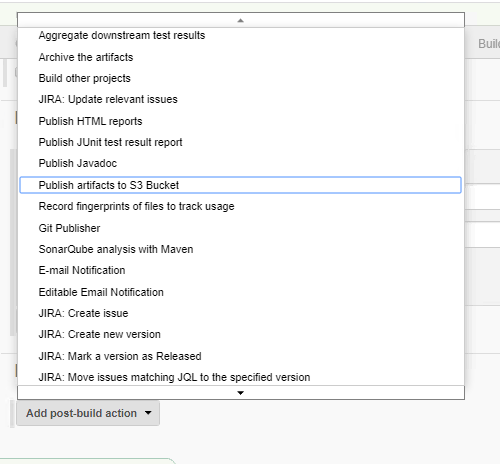
Once we are done with setting up Amazon S3 Profile we can now go to our jenkins builds and under post build action we can choose the option Publish artifacts to S3 Bucket as shown below.
eight

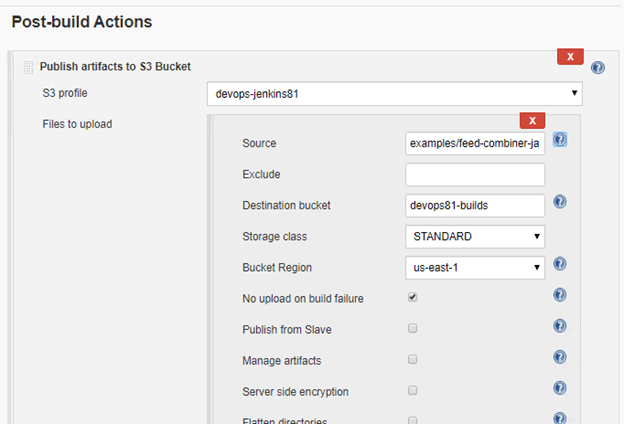
Enter the values appropriately under publish artifacts to S3 Bucket values like (S3 Profile , Files to upload,Destination bucket , Bucket region) refer below for values used for this example.

nine

Once publish artifacts to S3 Bucket setting is done under post build action now we are good to upload our build artifacts to mentioned S3 Bucket.Next we can execute the build and if the build is success it will upload the mentioned artifacts to the S3 buckets below is the log out of successful upload of artifacts to S3 bucket.

ten

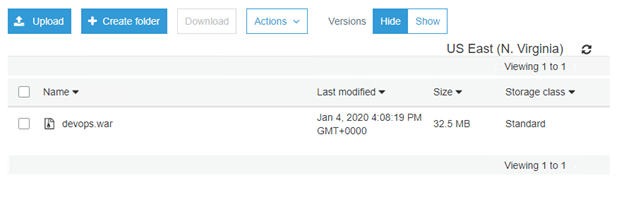
Once the build is successful we can go to our S3 bucket and can see our artifact got uploaded under it.

eleven

Docker swarm manager worker and configuring UCP console

What is Swarm Mode

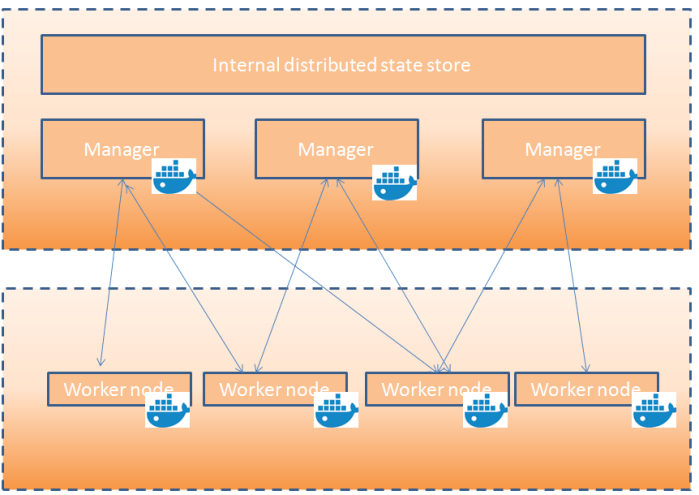
Swarm mode enables us to create a cluster of one or more Docker engines called a swarm.
A swarm consists of one or more nodes: physical or virtual machine running Docker engine 1.12 or Later in swarm mode.

We have two types of nodes :- managers and workers

I1

Manager Node

Manager node handles cluster management tasks :-

  • Maintaining cluster state
  • Scheduling services
  • Serving swarm mode (HTTP API endpoints)

The managers maintains a consistent internal state of the entire swarm and all the services running on it. When you have multiple managers you can recover from the failure of a manager node without downtime.

  • A three-manager swarm tolerates a maximum loss of one manager.
  • A five-manager swarm tolerates a maximum simultaneous loss of two manager nodes.
  • An N manager cluster tolerates the loss of at most (N-1)/2 managers.

Worker Node

Worker nodes are also instances of Docker engine whose sole work is to execute containers. They don’t participate in scheduling decisions , or server the swarm mode HTTP API.

We can create a swarm of one manager node but we cann’t create a swarm of one worker node with a manager node.

By default all managers are also workers to make sure manager doesn’t execute and tasks by scheduler we can keep the manager in Drain mode so the Scheduler will assign task to nodes which are in active mode.

Changes roles

The node can change their roles also a Manager node can be demoted to worker node and in similar fashion a worker node can be promoted to Manager node.
This are called (Node demote and Node Promote respectively).

Setting Up Swarm (Configure Managers)

Follow below steps to initialize a machine as docker manager

Run this command

docker swarm init –advertise-addr <> (IP address where we want to initialize the swarm)

$ docker swarm init --advertise-addr 192.168.99.121
Swarm initialized: current node (bvz81updecsj6wjz393c09vti) is now a manager.

To add a worker to this swarm, run the following command:

docker swarm join \
–token SWMTKN-1-3pu6hszjas19xyp7ghgosyx9k8atbfcr8p2is99znpy26u2lkl-1awxwuwd3z9j1z3puu7rcgdbx \
172.17.0.2:2377

To add a manager to this swarm, run ‘docker swarm join-token manager’ and follow the instructions

Setting Up Swarm (Configure Worker)


[root@devops811c cloud_user]# docker swarm join-token worker
To add a worker to this swarm, run the following command:
docker swarm join--token SWMTKN-1-3u6nln8dlxamz29t0a6ig9aq1sv0vdjydkud3mimy63n7s0h91-7q89jt2v51wchy4aqcown7o8k 172.31.29.239:2377

Configuring UCP

Login to the server which is configured as manager and execute below command :-

docker container run --rm -it --name
ucp   -v /var/run/docker.sock:/var/run/docker.sock   docker/ucp:3.2.1 install   --host-address 172.31.29.239   --interactive --force-minimums
I2

Once UCP is configured it can be accessed using IP :- https://<>:443/

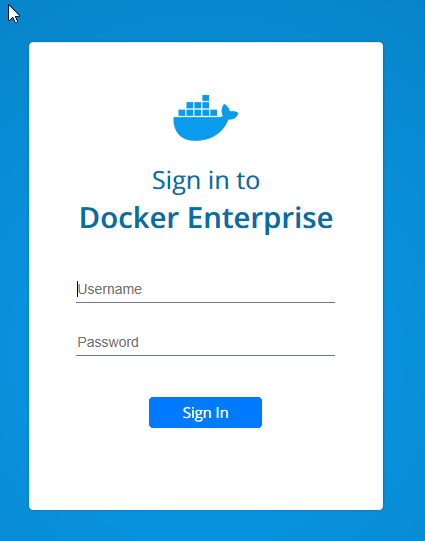
We should get below UCP login page :-

I3

Once we login successfully we will get a upload License option so we can click on Get a Free trial license and click on option START 1 MONTH TRIAL.

I4

Click on the License Key it will download the license with .Lic extention next we have to go to upload license window click on upload license button browse the LIC file. Once the license is uploaded successfully we can see the UCP Login window.

I5

Click on admin and then click shared resourcces >> Nodes it will give us glimpse of currently running nodes and managers.

I6


Dockerize Jenkins with example to build sample Java app


Run Jenkins in Docker

  1. Open the terminal window
  2. We will use jenkinsci/blueocean images as a container in Dokcer and will use below command to bring the Jenking image up and running.docker run –rm -u root -itd -p 8080:8080 -v jenkins-data:/var/jenkins_home -v /var/run/docker.sock:/var/run/docker.sock -v “$HOME”:/home jenkinsci/blueocean
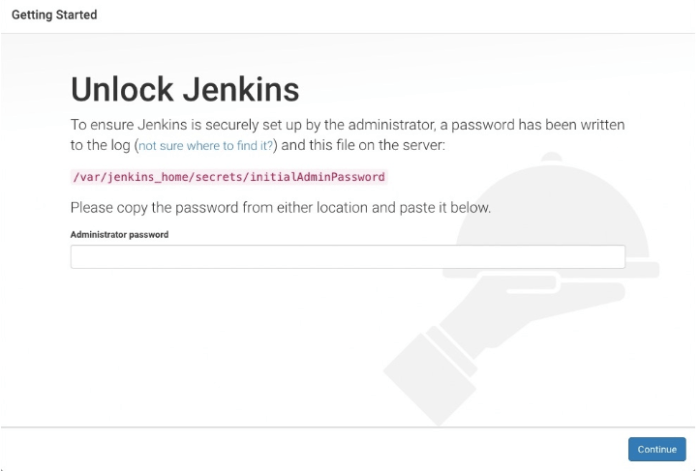
  3. As Jenkins start first will generate a sample password to get the password we can use below command
    docker exec <<containerID>> cat /var/jenkins_home/secrets/initialAdminPassword
    1
  4. Next login to the jenkins using url http://<<hostname>&gt;:8080/ it will open first jenkins screen which ask Intial admin password as credential which we have extracted above input
    the credential and hit continue
    2
  5. After unlocking jenkins we can next customize jenkins just click on the option install suggested plugins. The setup wizard will show progress of plugin installations.
  6. Once the suggested plugin installation process completes next jenkins will ask to create first admin password enter the asked data (username , password , fullname , emailid).
  7. When the Jenkins is ready page appears, click Start using Jenkins.
    Notes:

    • This page may indicate Jenkins is almost ready! instead and if so, click Restart.
    • If the page doesn’t automatically refresh after a minute, use your web browser to refresh the page manually.
  8. If required, log in to Jenkins with the credentials of the user you just created and you’re ready to start using Jenkins.

Fork and Clone the sample repository

Repository url which should be forked :- https://github.com/jenkins-docs/simple-java-maven-app

Create the pipeline project

  1. Login to the jenkins url with provided credentials
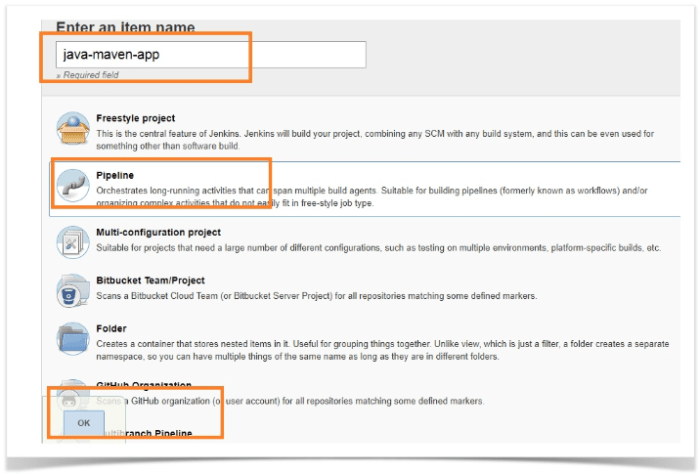
  2. Click on create New Item  enter the item name , next choose type of job as pipeline and press ok
    3
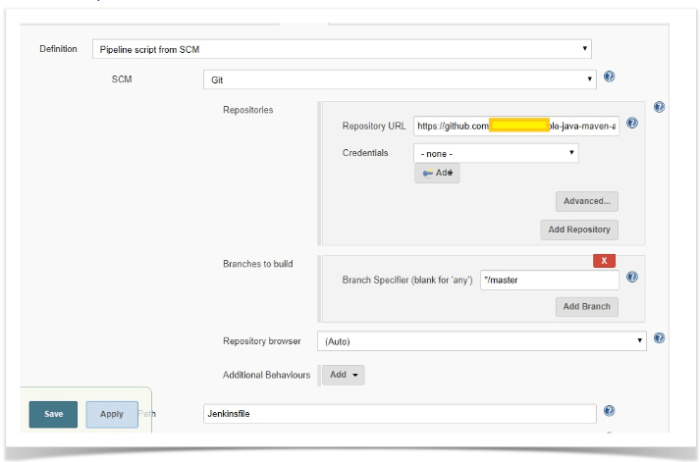
  3. Next we have to give required details under the pipeline configuration screen (source code type , source code url , jenkins file name)
    4
  4. Once we are done with configuration click on Apply and Save.

Creating the Jenkinsfile

Under the forked source code create a file with name Jenkinsfile jwe will be using  docker image maven:3-alpine for this project. Use any of the text editor and enter the below pipeline script and commit it under your source control.

Pipeline {
agent {
docker {

image ‘maven:3-alpine’
args ‘-v /root/.m2:/root/.m2’
}
}

stages {

stage(‘Build’) {
steps {

sh ‘mvn -B -DskipTests clean package’
}
}

stage(‘Test’) {

steps {
sh ‘mvn test’

}
post {

always {

junit ‘target/surefire-reports/*.xml’

}

}

}

stage(‘Deliver’) {

steps {

sh ‘./jenkins/scripts/deliver.sh’

}

}

}

}

So the image parameter downloads the maven:3-alpine Dokcer image and runs the image as a separate container.

Once we have created the jenkins file , added the required pipeline script as shown saved the file and committed back it to our github repository we are then good to execute our pipeline

Executing our pipeline

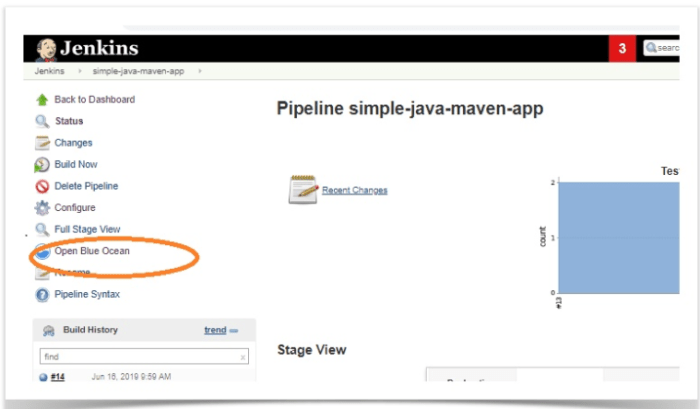
Click on the job which we have created and then click on the option Open Blue Ocean

5

Once we are into blue ocen user interface click on the RUN option as shown below

6

We can see the progress as it goes through each stages :-

7

Once all the stages completes successfully we should see something as below :-

8

So we can see the pipeline job went through different stages start → build → test → Deliver → End

Screenshot of the job from classic jenkins interface

9

Publishing HTML Reports in Jenkins Pipeline

It shows the usage of HTML Publisher plugin to see reports generated using integrated tools like sonaryqube , codecoverage , protractor.. .

Using this jenkins plugin we can see the reports from within jenkins.

We will use sample ruby project , and will create jenkins pipeline for it. we are doing code coverage over this project and will publish the code coverage results with each build job. I could.

STEPS INVOLVED

Configure your pipeline under Jenkins

1. Creation of Pipeline Project

Go to NEW ITEM under Jenkins and choose appropriate name for the project and choose project type as pipeline.

1

Go to the Pipeline section of Advance Project Options and enter below code :-

stage ‘Build’

node {
// Checkout
git branch: ‘master’,url: ‘https://github.com/devops81/HTMLPublisher.git&#8217;

// install required bundles
sh ‘bundle install’

// build and run tests with coverage
sh ‘bundle exec rake build spec’

// Archive the built artifacts
archive (includes: ‘pkg/*.gem’)

}

2

Till this point if we build the project it will do following things

i) Checkout the codebase
ii)Execute the bundle install command
iii)Execute the command bundle exec rake build spec which will compile test and generate the artifact file

2. Generating pipeline code for HTML Publisher plugin

Next we will use Snippet Generator  to generate code for HTML Publisher plugin go to the url :-

Under SAMPLE STEP choose publishHTML:Publish HTML reports and provide the values for these fields :-

  • HTML directory to archive
  • Index page[s]
  • Report title

3

Next click on Generate Pipeline Script it will generate script for the html publisher plugin with the provided values.

3. Integrating the generated html publisher code with existing pipeline code

Next we will copy the code which got generated and will append it to our existing pipeline code

4

Final code should look like below

stage ‘Build’

node {
// Checkout
git branch: ‘master’,url: ‘https://github.com/devops81/HTMLPublisher.git&#8217;

// install required bundles
sh ‘bundle install’

// build and run tests with coverage
sh ‘bundle exec rake build spec’

// Archive the built artifacts
archive (includes: ‘pkg/*.gem’)

publishHTML([allowMissing: false, alwaysLinkToLastBuild: false, keepAll: false, reportDir: ‘coverage’, reportFiles: ‘index.html’, reportName: ‘HTML Report’, reportTitles: ‘Coverage Report’])
}

After click on Apply and Save button on Jenkins.

4. Viewing the report post successful Jenkins job run

Next we can run the job post successful run of the job  the left section of the Jenkins should show link for html report got generated during the build.

5


So this link should show us the coverage report generated from within Jenkins.

6.png

Knowing Jenkins as part of DevOps Ecosystems


A brief about CI/CD process

To understand the Jenkins tools first we should understand the CI/CD practice and why it’s required.

CI/CD is an integral part of any devops culture or practice followed across any project. In today’s IT industry we can’t imagine a project without a strong CI/CD practice.

In general in today’s industry if the operation part of the project is running without CI/CD or DevOps practices we can consider the project at risk. That’s the reason industry Leaders emphasize on implementation of  the CI/CD practices across their projects.

Few of the Judging parameters which can be checked to test the maturity of devops in any projects are  i) are we following CI/CD? ii) Are we following agile methodology? iii) Are we putting our infra as a code? Iv) Whether our artifacts are versioned or not?

So answer to all these question helps us to assess the maturity of our CI/CD devops practice under a project.

A healthy devops practice within a project is a good sign for quality delivery and sustainability of the project overall.

There are few terminology an individual should know to understand the CI/CD concepts these are

CI -> Continous Integration , CD -> Continous Delievery CD -> Continous Deployment

Continuous Integration (CI) helps to make our software release easier. It involves merging back of code back to main/master branch frequently the code is integrated to shared repository multiple times a day. A good continuous integration is always aligned and integrated with a robust test suites which executes automatically.
To brief the CI process once the developer check-ins the new code , it triggers the new build and automated test suits start running against the new build to check any integration problems so if in case the build or the test phase fails respective team is notified.

Now if we come to CD this term is used for both Continuous Delivery and Continuous Deployment. 

Continuous delivery (CD) is process of automating entire software release process.  So its means CI + automatically prepare the build and track its promotion/deployment to controlled environment. So a team member with appropriate authority can promote the build to controlled environments (UAT, PROD) with minimal manual intervention mostly with a single click.

Continuous Deployment (CD) is a practice under which deployment part is also automated and every change to the build is deployed automatically to the production environment without any manual intervention. So developer just reviews the pull request and merge back to the respective branch , from there onwards the CI/CD team takes over and make sure the builds run properly with test suites and if all gets completed successfully than the builds get deployed on the production automatically without manual intervention and the respective teams get informed.

Below picture depicts the continuous integration, continuous deployment and continuous Delivery Diagrammatically

aboutjenkins

What is Jenkins?

Sometime most of the people heard about Jenkins but they don’t know what exactly it is so their first question will be what is Jenkins exactly? So to define Jenkins in short it’s an open source tool and it’s one of the industry leader in CI/CD domain. It has the robust capabilities to automate the build, deployment and test automation part of projects of varied complexity and developed using varied technologies.

Whenever you hear this term in your project that team doesn’t know what build is working on which environment, there is no centralized system for the distribution of build artifacts like jar , ear or msi files.

So that is the right place we should inject the Jenkins tool which surely resolve these issues and bring CI/CD process to the project and makes the artifacts, builds and test automation more reliable and transparent.

Jenkins as devops engine

Jenkins is one of the core tool of devops tool chain, and including Jenkins as your CI/CD expert for your project is always a better decision to bring operation part of your project towards agile methodology and making it more transparent and visible.

In early era when there was no CI/CD practice followed it was very hard to identify , what got deployed , who deployed it , why the build got broken , what build number got deployed , detecting the versions of artifacts , getting notifications for build , deployment status.

After including the Jenkins as CI/CD expert in most project it’s observed all the above mentioned issues came to an end and now the development team can rely on their CI/CD expert Jenkins which make sure code and artifacts are getting deployed on time and they are notified accordingly with status with minimal manual effort and in a controlled manner.

Jenkins its alternative and its competitor

So as in every industry each good product has its competitor same as with Jenkins , apart from Jenkins there are other similar robust tools available in market which are doing good job and sharing the workload of Jenkins.

To name the few are Bamboo, Team city , Deploy IT , CircleCI , UrbanCode.

So all these tools are popular CI/CD tools which are used across industry to fulfill the CI/CD need of the project. Below is chart showing comparison between Jenkins , Teamcity and Bamboo so if see one the biggest benefit of Jenkins is it’s open source and free of cost .

picjenkins.png

Feature & Flexibility of Jenkins

Whenever we include any tool in a project we do an analysis on how much flexible that tool is , will that tool be able to sustain the changes happening across the projects , technology and how easily it can adapt to change.

So in this case also Jenkins scores a very good marks, below are the key bulleted point of Jenkins which makes it’s very much flexible and adaptable to the changes

  • Its OS independent and can run on Linux , windows or mac environment
  • It has its own in build server so it doesn’t depends on any external application server to run itself
  • It has integration capacity with various kind of tools and plugins spread across source code , build scripts , notification plugins
  • Its provides around 300 free available plugins to cater different project needs from CI/CD perspective

Value add using Jenkins

  • Its add agility to the project as team start following devops practice of continuous integration and deployment
  • Build and release process become more controlled and changes can be tracked
  • The operation part of the devops becomes more transparent and traceable
  • Team can now rely on Jenkins which will take care of their build , deployment , test automation activities with minimal manual effort

Conclusion

So if your project still doesn’t follow CI/CD devops practice its high time they should be included into the project as a part of best practices which are followed across industry. Including Jenkins as tool will bring more agility, transparency and control to the project.


RUNNING JAR/WAR FILES AS WINDOWS SERVICE

Following tools can be used to install Jar file as a windows service this helps when we have to execute multiple jar files as running jar as windows service helps us to start/stop specific jar file rather than stopping and starting all the jar file process.

Software required:

http://nssm.cc/usage

Suppose the Jenkins or any other jar or war file which needs to be executed is at location c:/jar/Jenkins.war

  • Got to the command prompt at the location where nssm.exe is present example :- E:\download\nssm-2.24>nssm.exe
    pic1
  • Than execute below command as per your locations and parameters required :-E:\download\nssm-2.24>nssm.exe install “JENKINS SERVICE” “C:\Program Files\Java\jdk1.8.0_152\bin\exe” “-jar E:\download\jenkins.war”

    Service “JENKINS SERVICE” installed successfully!
  • Once all the location and parameters are ok it should start the Jenkins service successfully and it should be reflected under the window’s service panel
    pic2
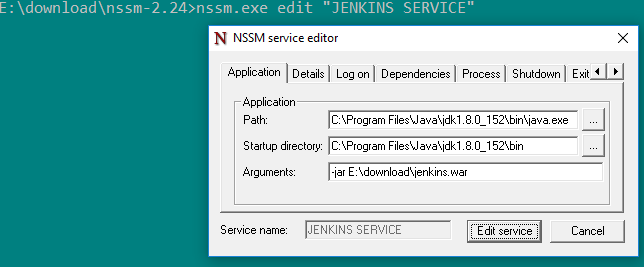
  • To edit the installed service we can execute below command

It will open a respective edit window under which we can do require changes and hit on edit service option that will update the service accordingly
pic3

Deploy Static HTML Website as Container

Deploy Static HTML Website as Container

img1

Docker Images start from a base image. The base image should include the platform dependencies required by your application, for example, having the JVM or CLR installed.

This base image is defined as an instruction in the Dockerfile. Docker Images are built based on the contents of a Dockerfile. The Dockerfile is a list of instructions describing how to deploy your application.

Under this particular example we are taking our base image as alpine version of Nginx. This provides the configured web server on the linux alpine distribution.


As  a first step we require to create our own docker file with below content :-

FROM nginx:alpine

COPY . /usr/share/nginx/html

The first line defines our base image. The second line copies the content of the current directory into a particular location inside the container.

The Dockerfile is used by the Docker CLI build command. The build command executes each instruction within the Dockerfile. The result is a built Docker Image that can be launched and run your configured app.
The build command takes in some different parameters. The format is

docker build -t <build-directory>.

img2

The -t parameter allows you to specify a friendly name for the image and a tag, commonly used as a version number. This allows you to track built images and be confident about which version is being started.

Now we can build our static HTML image using the build command below .

docker build -t webserver-image:v1 .

Once the command is executed successfully we can view the image list using the command :-

docker images
img3

The built image will have the name webserver-image with a tag of v1

With the built Image it can be launched in a consistent way to other Docker Images. When a container launches, it’s sandboxed from other processes and networks on the host. When starting a container you need to give it permission and access to what it requires.

For example, to open and bind to a network port on the host you need to provide the parameter

-p <host-port>:<container-port>.

Next we can launch our newly built image providing the friendly name and tag. As it’s a web server, bind port 80 to our host using the -p parameter.

docker run -d -p 80:80 webserver-image:v1

Once started, we’ll be able to access the results of port 80 via curl docker

To render the requests in the browser use the following links

https://<<machineip>>/

img4


We now have a static HTML website being served by running docker nginx container

Docker Know how

TOPICS

Contents

INTRODUCTION TO DOCKER.. 2

When to use Docker 2

Containers Vs. Virtual Machines. 2

DOCKER ARCHITECTURE.. 3

Creating Our First Image. 6

PACKAGING A CUSTOMIZED CONTAINER.. 8

USING DOCKERFILE. 8

EXPOSING OUR CONTAINER WITH PORT REDIRECTS. 9


INTRODUCTION TO DOCKER

Docker is part of production workflow and is mainly part of devops tool chain Docker is an open source project that automates the deployment of applications inside software containers, by providing additional layer of abstraction and automation of operating system level.
So basically it’s a tool that packages up a application and dependencies which are required to run the application in a “virtual container” so that i can run on any linux system or distribution.

When to use Docker

There are a lot of reasons to use Docker. Although we will generally hear about Docker used in conjunction with development and deployment of application there are ton of examples for use:-

·         Configuration Simplification

·         Enhance Developer productivity

·         Server consolidation and Management

·         Application isolation

·         Rapid Deployment

·         Build Management

Containers Vs. Virtual Machines

Virtual machine in short refered to as VM is an emulation of a specific computer system type. They operate based on the architecture and functions of that real computer. Its virtualization where it allows running of virtual OS under other OS but the virtual OS doesn’t communicate with the host OS directly it does it using hpervisor. An AWS intance is an example of virtual machine
Container is entirely the isolation and packaging of an application with its required dependecies which will be required to execute it independently and its completly independent of its surroundings and host operating system.

DOCKER ARCHITECTURE

Docker is a client-server application where both client and server can be on the same system or we can connect docker client with a remote docker daemon.
Client and the daemon(server) communicates using sockets or through RESTful
The main component of docker are:
i) Daemon
ii) Client
iii) Docker.io Registry

{+}https://newsroom.netapp.com/blogs/containers-vs-vms/+
Is Docker is the only player
No other companies are projects have been working on the concept of application virtualization for sometime:
I. FreeBSD – Jails
Ii. Sun/Oracle Solaris – Zones
Iii. Google – lmctfy (Lem me contain that for you )
Iv. OpenVZ

INSTALLING DOCKER

Os : EC2 – AMI

Commands to be used :-

  • [root@ip-172-31-21-42 run]# sudo yum install -y docker
  • [root@ip-172-31-21-42 run]# sudo service docker start
  • [root@ip-172-31-21-42 run]# sudo service docker status

  Command to make sure docker got installed properly

  • [root@ip-172-31-21-42 run]# docker run hello-world

The Docker Hub
Docker hub we can consider as repository for our docker images from were we can pull and push our images to create our containers to start with we can just signup at
http://hub.docker.com

Creating Our First Image
Docker info


Creating Our First Image

We will pull docker ubuntu image with tag xenial
>> Docker pull ubuntu:xenial
>> docker images will give us the all available docker images
>> docker ps -a will give history of all the container with their status whether up or exited.

>> docker restart [containername] or [containerid]

>> docker inspect ubuntu:xenial its give all the details about the container

>> docker attach [containername]


>> docker run -itd ubuntu:xenial /bin/bash Using this command the container will run in background
>> docker inspect [containername] | grep IP

We can execute it on both up and stopped container
One container is independent of other container even its taken from same base image and data in one container is independent of data in another container.

PACKAGING A CUSTOMIZED CONTAINER

Any changes done under container can be carried forward it remains in that container but if we can to acheive it we can do it via two method
i) committing our changes under our container
ii) modifying and saving the dockerfile and building the image
Once we have done the changes under a container we can commit it using command >> docker commit -m “added version file for v1” -a “sanjeev” [containername] sanjeev/<<name>>:v1NEXT>>docker imagesWe should see the custom image
Now when we run container using custom image it should persist the data

USING DOCKERFILE

  1. Create a build dir and do vim Dockerfile
  2. enter some text and some sample run comnand as shown
  • Next we can run the command >> docker build -t=”sanjeev/[containername]:v2″ .

EXPOSING OUR CONTAINER WITH PORT REDIRECTS

Is a process by which we can customize the port on which the container application running like suppose under the container tomcat is deployed on port number 8080 but we want to acces it using {+}http://localhost:9090/+ so for this we can use port redirect
>> docker run -d -p 8080:80 nginx:latest